> ## Documentation Index
> Fetch the complete documentation index at: https://docs.taqtile.com/llms.txt
> Use this file to discover all available pages before exploring further.
# Azure Active Directory Single Sign-On (SSO)
> Configure Azure Active Directory SSO for Manifest with step-by-step setup instructions for app registration and authentication.
## **Prerequisites**
Currently, Manifest only supports Single Sign-on (SSO) using Azure Active Directory. To get started you need the following items:
* An Azure account with an active subscription
* One of the following roles to the client Azure account: Global Administrator, Cloud Application Administrator, Application Administrator, or owner of the service principal.
* The following role to the Manifest application: System administrator
## **Adding the Manifest application to your Azure AD tenant**
1. Sign into the Azure portal
2. In the Azure portal, search for and select **Azure Active Directory**.
3. Select **App registrations**
4. Select **“+ New Registration”**
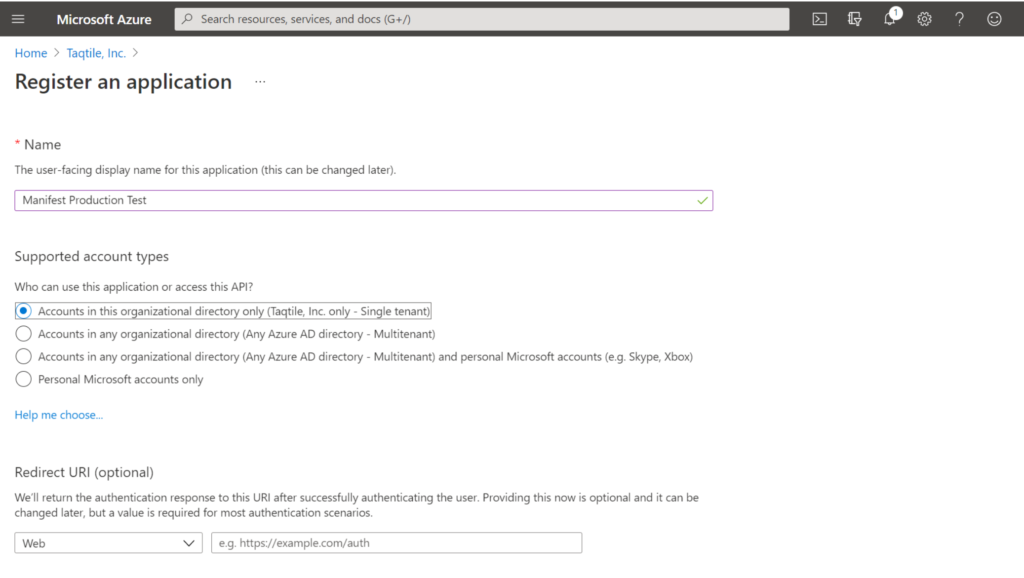
5. Complete the App registration form:
* Enter the desired user-facing display name, eg. “Manifest”
* Choose the scope for application authentication (Most single tenant users will select the first option: Supported Account types – select “Accounts in this organizational directory only”)
* Redirect URI is (optional) – leave blank
* Select Register
6. From the App registration screen, under “**Owned applications**” select the Manifest app you just created
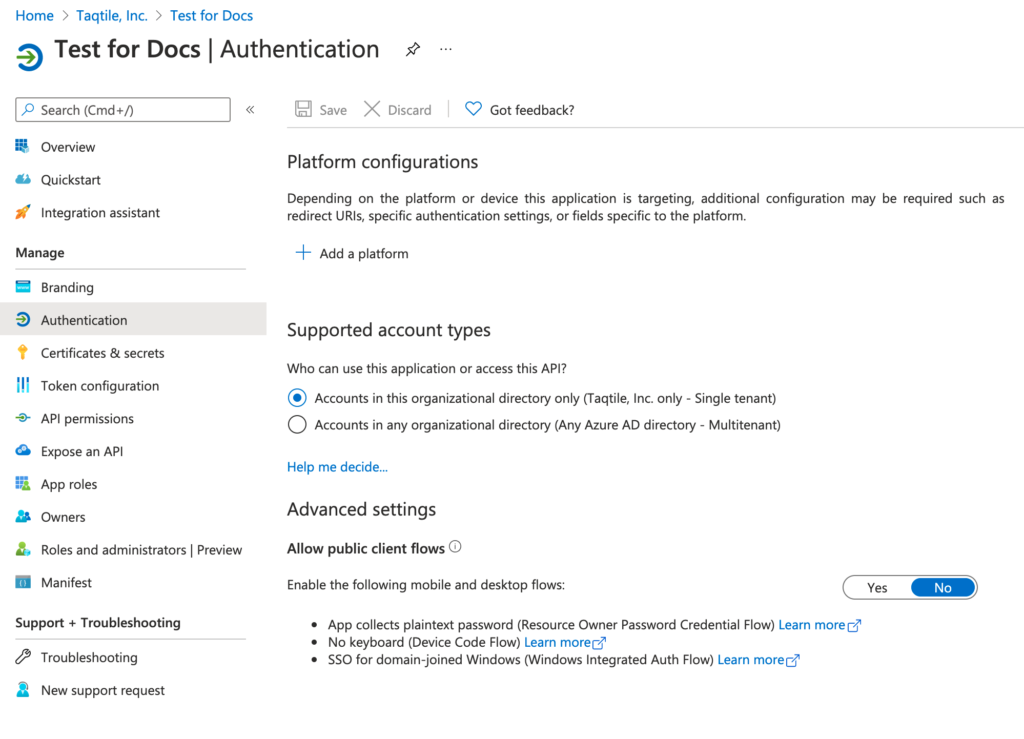
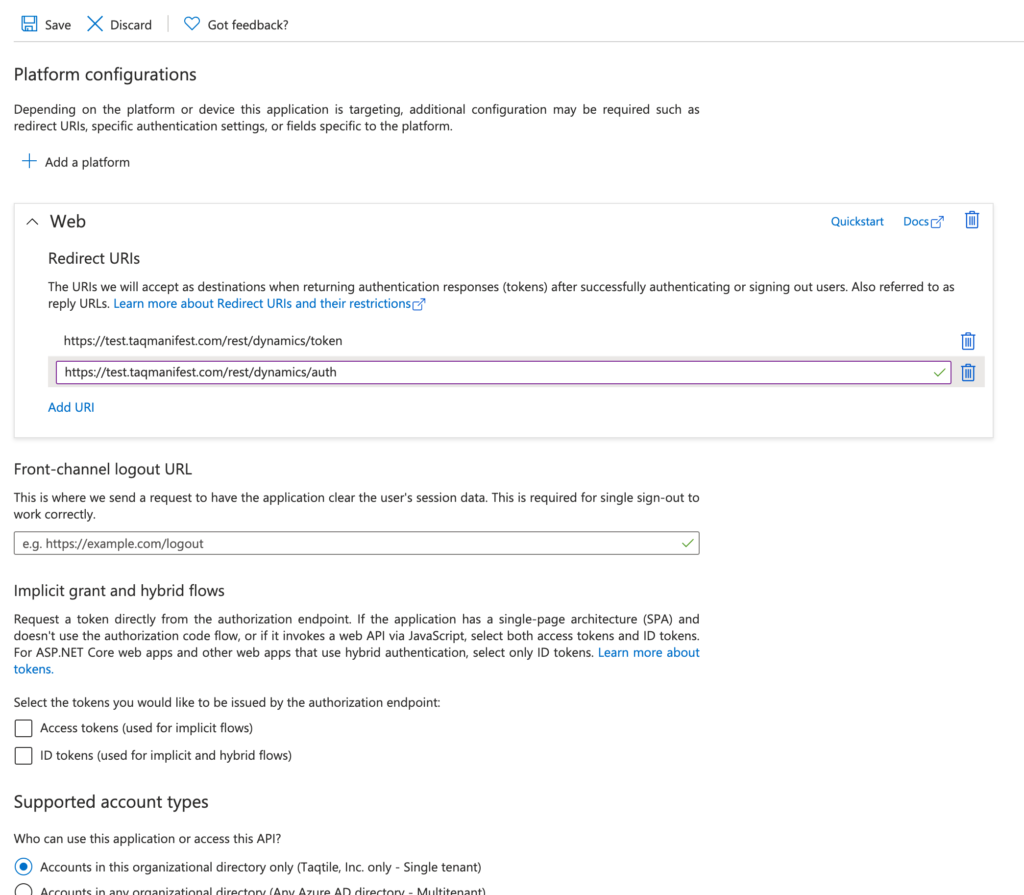
7. Go to the **Authentication** tab
8. Select **+ Add a platform**
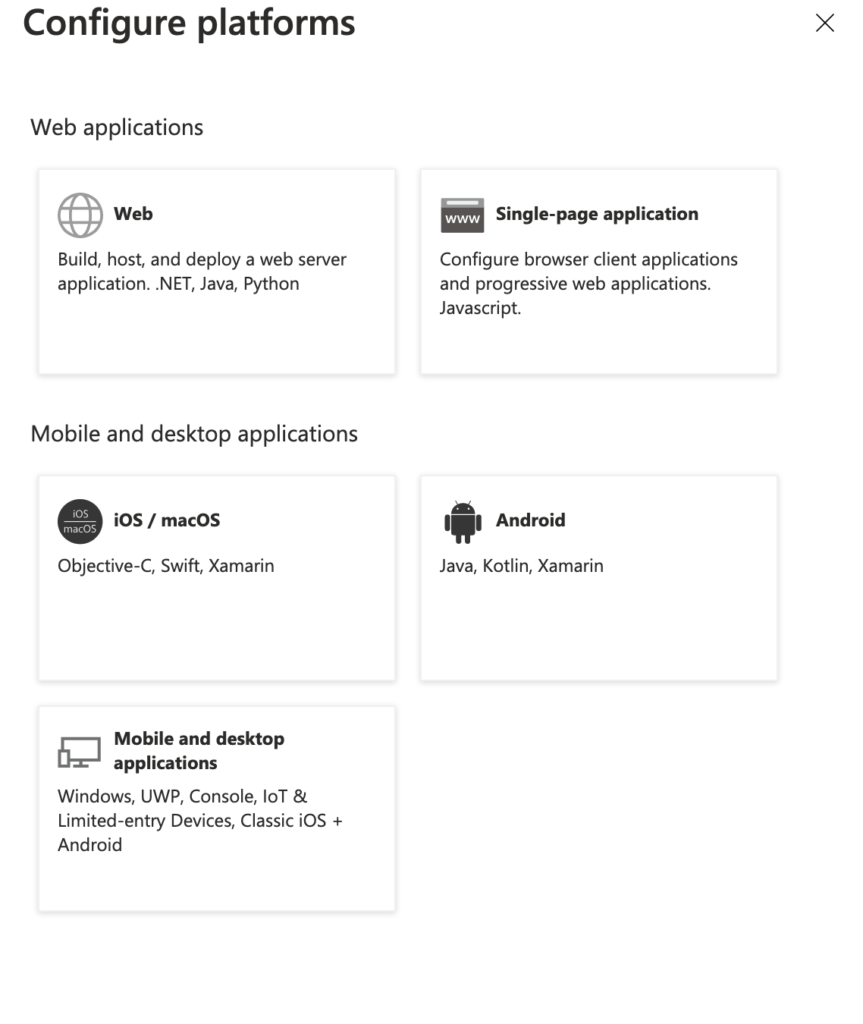
9. On the Configure platforms select Web
10. Enter the redirect URI of the application
* *domain.com*/rest/dynamics/token
* *domain.com*/rest/dynamics/auth\
**IMPT**: insert your full Manifest domain URL in place of *domain.com* eg: [https://mysubdomain.taqmanifest.com/rest/dynamics/token](https://mysubdomain.taqmanifest.com/rest/dynamics/token)
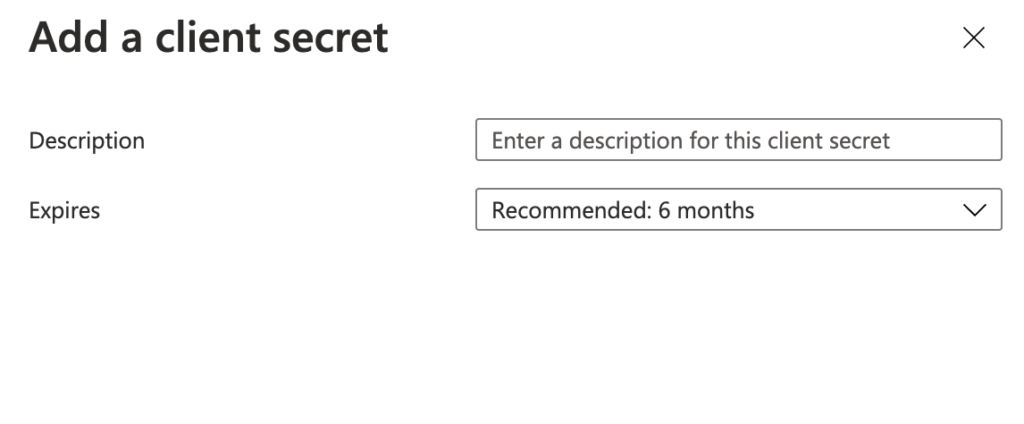
11. Go to the **Certificates & secrets** tab
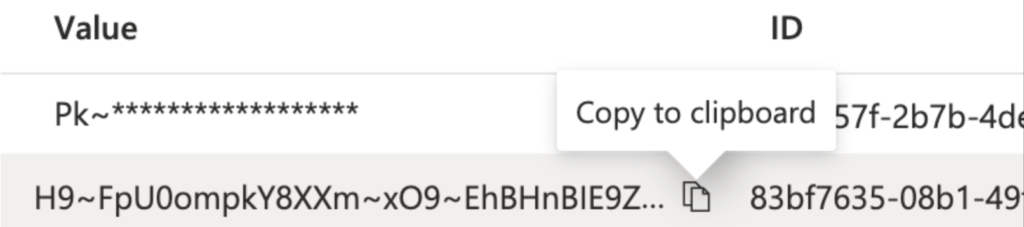
12. Under **Client secrets**, select “**+ New client\*\*\*\*secret**” and add a client secret
* Provide a description and expiration and a client secret will be automatically generated
* **IMPT!** Copy the key once created and save this. You will need this to configure your AD in Manifest. Once you leave this screen you will not be able to access this secret value again.
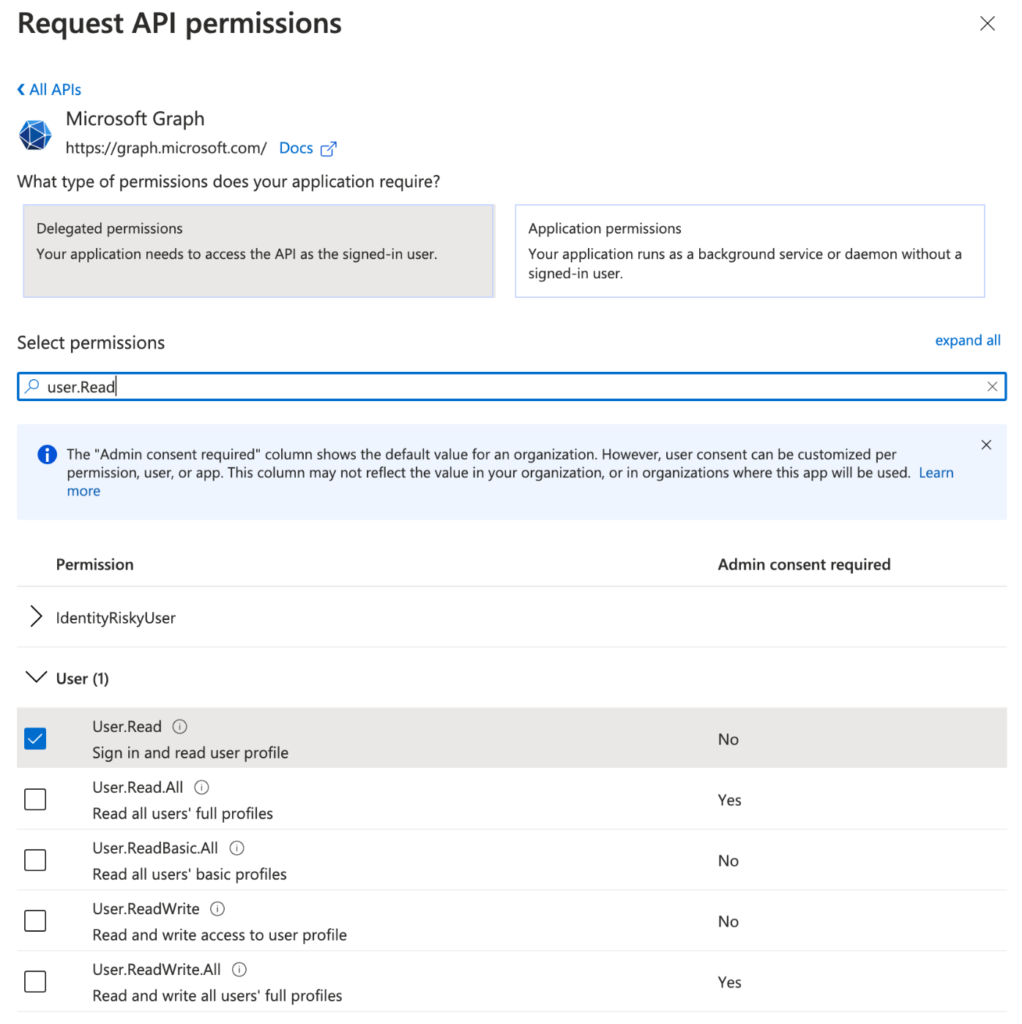
11. Go to the **'API Permissions'** tab
12. Select **“+ Add a permission”**. The “Request API permissions” window will fly out.
13. Under Microsoft API’s, select **Microsoft Graph**. You will be prompted to indicate what type of permissions your application requires.
14. Select Delegated Permissions and search for and then check off the following permissions:
* User.read
* Sites.Manage.All
* Sites.Read.All
* User.Read
15. Before logging out, be sure to make note of the following information required to configure your Active Directory in Manifest:
* **Application (client) ID:** available under App registrations
* **Client Secret**: created in step 10
* **Directory (tenant) ID**: available on the Overview tab
## **Configuring Manifest with your client Azure AD**
1. Sign into the **Manifest Client Portal**
2. Select “**Client Setting**s” and go to the **Active Directory Configurations** tab
3. Select **"+ OAUTH PROVIDER"**
4. Enter in the following information gathered in step 15 when adding the Manifest application to your Azure AD tenant:
* Client ID
* Client Secret
* Tenant ID
5. Select Update
Manifest Client Portal Active Directory Configuration

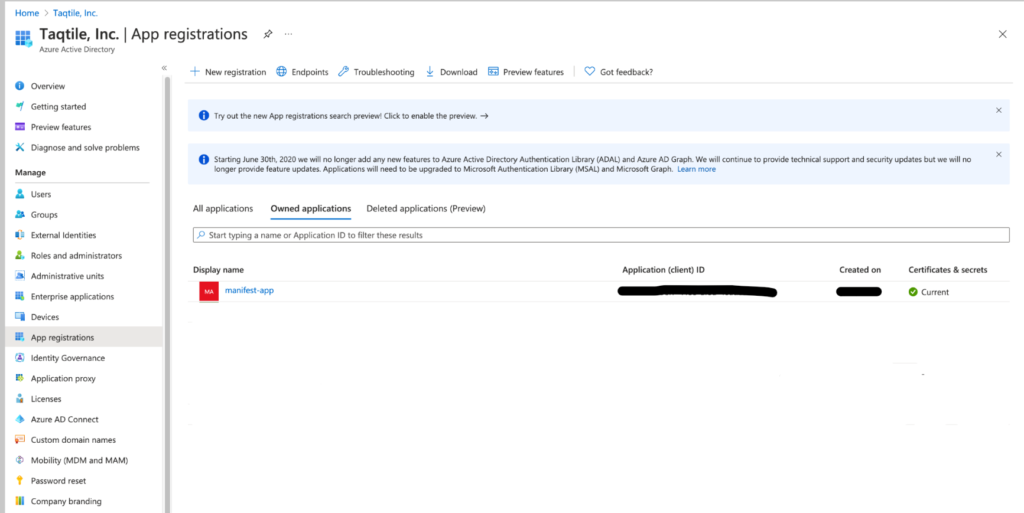 4. Select **“+ New Registration”**
5. Complete the App registration form:
* Enter the desired user-facing display name, eg. “Manifest”
* Choose the scope for application authentication (Most single tenant users will select the first option: Supported Account types – select “Accounts in this organizational directory only”)
* Redirect URI is (optional) – leave blank
* Select Register
4. Select **“+ New Registration”**
5. Complete the App registration form:
* Enter the desired user-facing display name, eg. “Manifest”
* Choose the scope for application authentication (Most single tenant users will select the first option: Supported Account types – select “Accounts in this organizational directory only”)
* Redirect URI is (optional) – leave blank
* Select Register
 6. From the App registration screen, under “**Owned applications**” select the Manifest app you just created
7. Go to the **Authentication** tab
8. Select **+ Add a platform**
6. From the App registration screen, under “**Owned applications**” select the Manifest app you just created
7. Go to the **Authentication** tab
8. Select **+ Add a platform**
 9. On the Configure platforms select Web
 10. Enter the redirect URI of the application
* *domain.com*/rest/dynamics/token
* *domain.com*/rest/dynamics/auth\
**IMPT**: insert your full Manifest domain URL in place of *domain.com* eg: [https://mysubdomain.taqmanifest.com/rest/dynamics/token](https://mysubdomain.taqmanifest.com/rest/dynamics/token)
10. Enter the redirect URI of the application
* *domain.com*/rest/dynamics/token
* *domain.com*/rest/dynamics/auth\
**IMPT**: insert your full Manifest domain URL in place of *domain.com* eg: [https://mysubdomain.taqmanifest.com/rest/dynamics/token](https://mysubdomain.taqmanifest.com/rest/dynamics/token)
 11. Go to the **Certificates & secrets** tab
12. Under **Client secrets**, select “**+ New client\*\*\*\*secret**” and add a client secret
* Provide a description and expiration and a client secret will be automatically generated
* **IMPT!** Copy the key once created and save this. You will need this to configure your AD in Manifest. Once you leave this screen you will not be able to access this secret value again.
11. Go to the **Certificates & secrets** tab
12. Under **Client secrets**, select “**+ New client\*\*\*\*secret**” and add a client secret
* Provide a description and expiration and a client secret will be automatically generated
* **IMPT!** Copy the key once created and save this. You will need this to configure your AD in Manifest. Once you leave this screen you will not be able to access this secret value again.
 11. Go to the **'API Permissions'** tab
12. Select **“+ Add a permission”**. The “Request API permissions” window will fly out.
13. Under Microsoft API’s, select **Microsoft Graph**. You will be prompted to indicate what type of permissions your application requires.
14. Select Delegated Permissions and search for and then check off the following permissions:
* User.read
* Sites.Manage.All
* Sites.Read.All
* User.Read
11. Go to the **'API Permissions'** tab
12. Select **“+ Add a permission”**. The “Request API permissions” window will fly out.
13. Under Microsoft API’s, select **Microsoft Graph**. You will be prompted to indicate what type of permissions your application requires.
14. Select Delegated Permissions and search for and then check off the following permissions:
* User.read
* Sites.Manage.All
* Sites.Read.All
* User.Read
 15. Before logging out, be sure to make note of the following information required to configure your Active Directory in Manifest:
* **Application (client) ID:** available under App registrations
* **Client Secret**: created in step 10
* **Directory (tenant) ID**: available on the Overview tab
## **Configuring Manifest with your client Azure AD**
1. Sign into the **Manifest Client Portal**
2. Select “**Client Setting**s” and go to the **Active Directory Configurations** tab
3. Select **"+ OAUTH PROVIDER"**
4. Enter in the following information gathered in step 15 when adding the Manifest application to your Azure AD tenant:
* Client ID
* Client Secret
* Tenant ID
5. Select Update
15. Before logging out, be sure to make note of the following information required to configure your Active Directory in Manifest:
* **Application (client) ID:** available under App registrations
* **Client Secret**: created in step 10
* **Directory (tenant) ID**: available on the Overview tab
## **Configuring Manifest with your client Azure AD**
1. Sign into the **Manifest Client Portal**
2. Select “**Client Setting**s” and go to the **Active Directory Configurations** tab
3. Select **"+ OAUTH PROVIDER"**
4. Enter in the following information gathered in step 15 when adding the Manifest application to your Azure AD tenant:
* Client ID
* Client Secret
* Tenant ID
5. Select Update