> ## Documentation Index
> Fetch the complete documentation index at: https://docs.taqtile.com/llms.txt
> Use this file to discover all available pages before exploring further.
# Dashboard
> Learn about Dashboard in Manifest with setup instructions and best practices.
## About the Dashboard
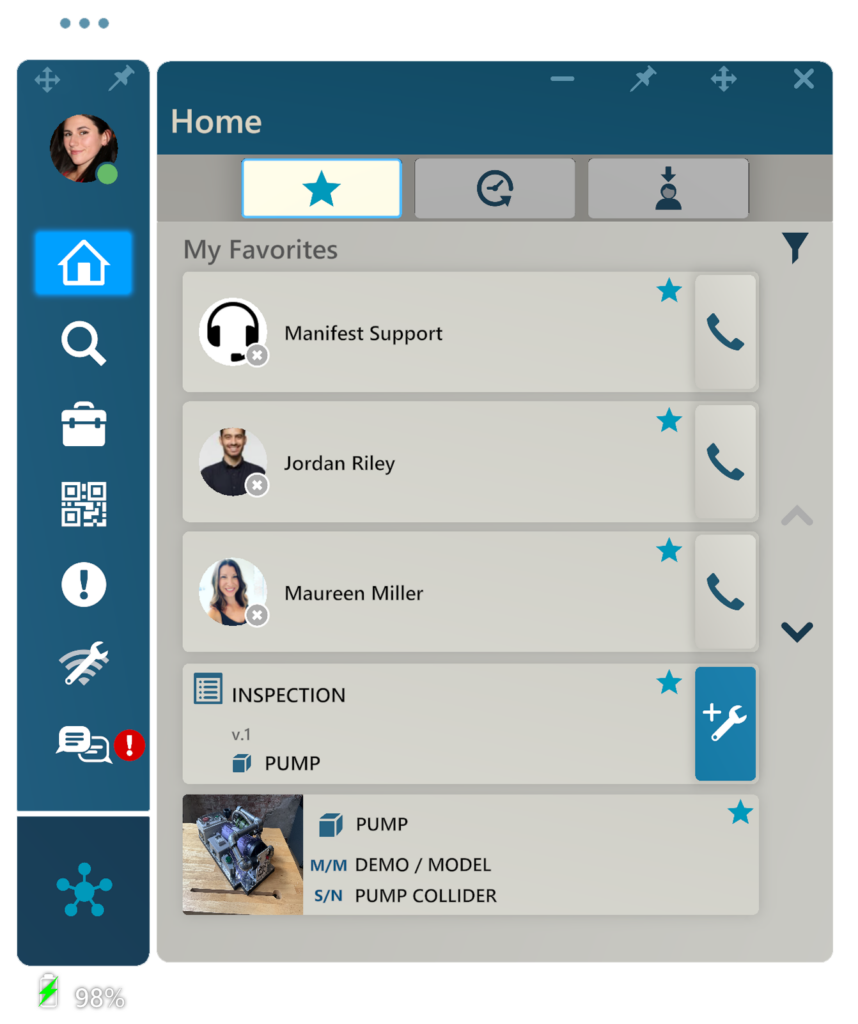
The Dashboard is a centralized place to easily access items you need to get to work using Manifest, and to do so quickly. The Dashboard will enable you to find favorited items, see what you worked on most recently, and view your assigned Work.
 ## Using the Dashboard
* **Accessing the Dashboard**: The Dashboard will open by default at initial login. It can be accessed at any time by selecting the house icon on the Dock.
* **Dashboard tabs**: there are 3 tabs in the Dashboard:
* **
## Using the Dashboard
* **Accessing the Dashboard**: The Dashboard will open by default at initial login. It can be accessed at any time by selecting the house icon on the Dock.
* **Dashboard tabs**: there are 3 tabs in the Dashboard:
* ** Favorites**
* **
Favorites**
* ** Recent Activity**
* **
Recent Activity**
* ** My Work**
* **Filters:**
* The Favorites and Recent Activity tabs can be filtered by data type
* **Sorting:**
* Results are sorted by newest to oldest
### My Favorites
Anything you favorite will show under My Favorites.
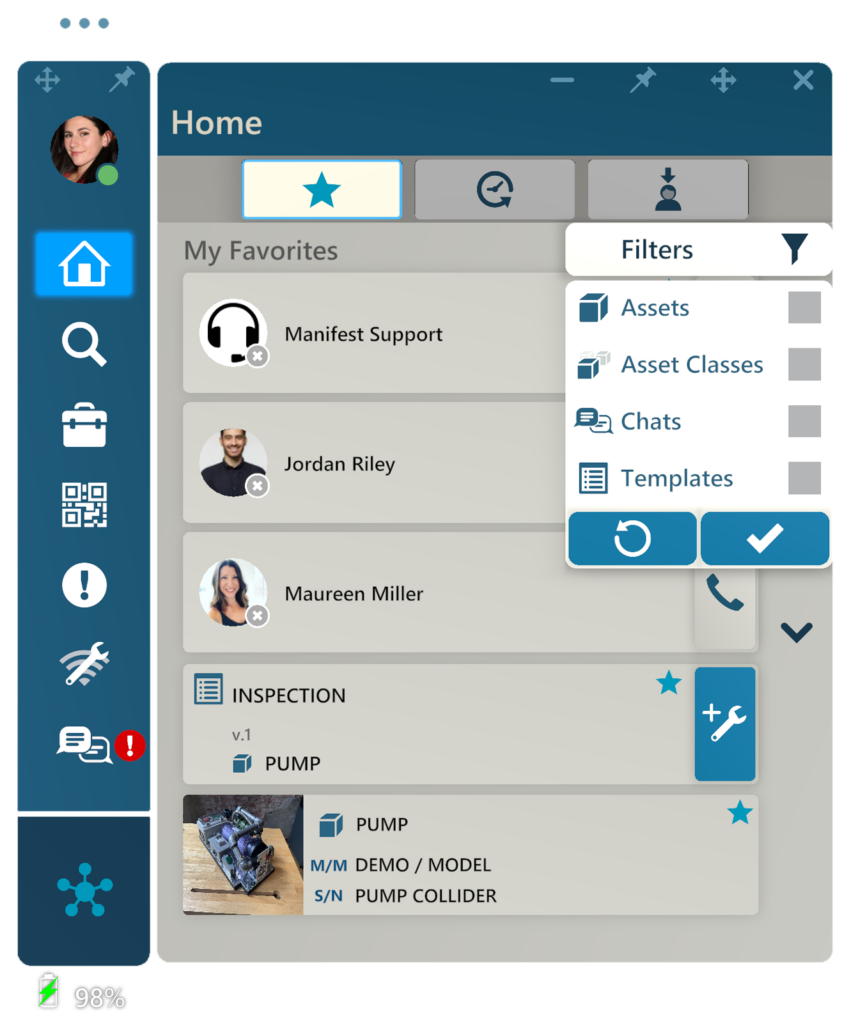
#### Filters
Favorites can be filtered using the following parameters:
* Assets
* Asset Classes
* Chats
* Templates
My Work**
* **Filters:**
* The Favorites and Recent Activity tabs can be filtered by data type
* **Sorting:**
* Results are sorted by newest to oldest
### My Favorites
Anything you favorite will show under My Favorites.
#### Filters
Favorites can be filtered using the following parameters:
* Assets
* Asset Classes
* Chats
* Templates
 ### My Recent Activity
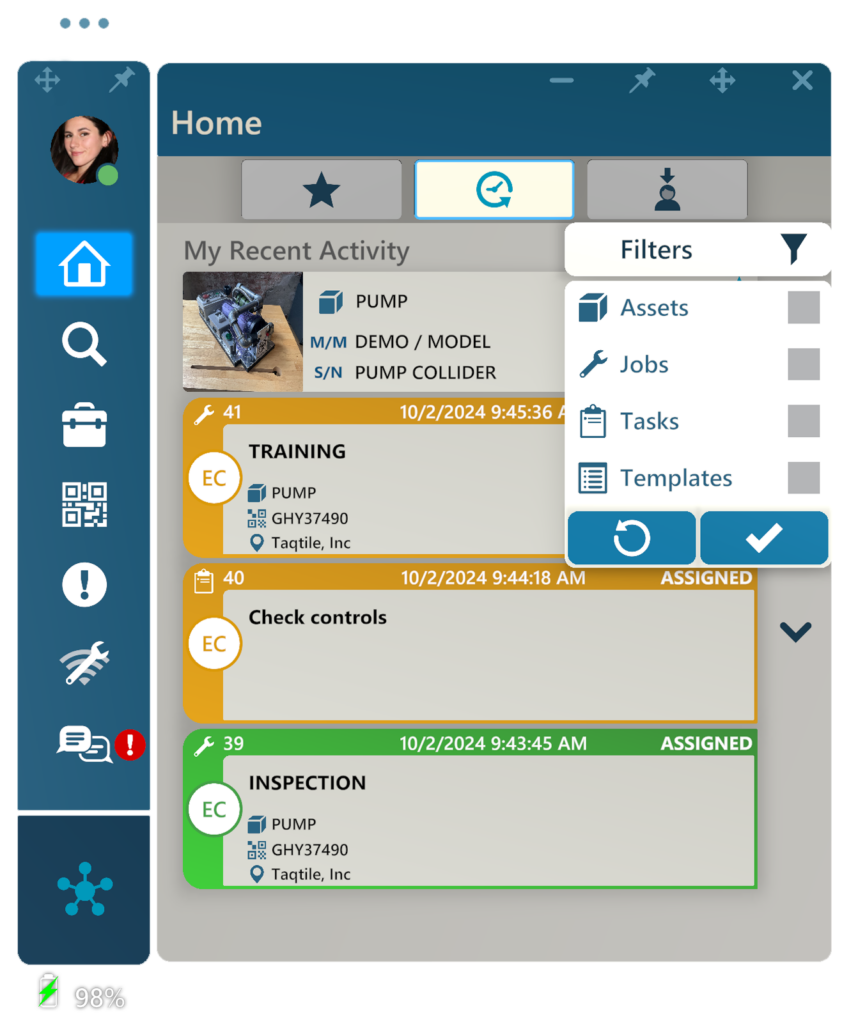
Recent Activity shows any Work, Templates, and Assets that you recently worked. You can view all or filter by the following parameters:
#### Filters
* Assets
* Jobs
* Tasks
* Templates
### My Recent Activity
Recent Activity shows any Work, Templates, and Assets that you recently worked. You can view all or filter by the following parameters:
#### Filters
* Assets
* Jobs
* Tasks
* Templates
 ### My Work
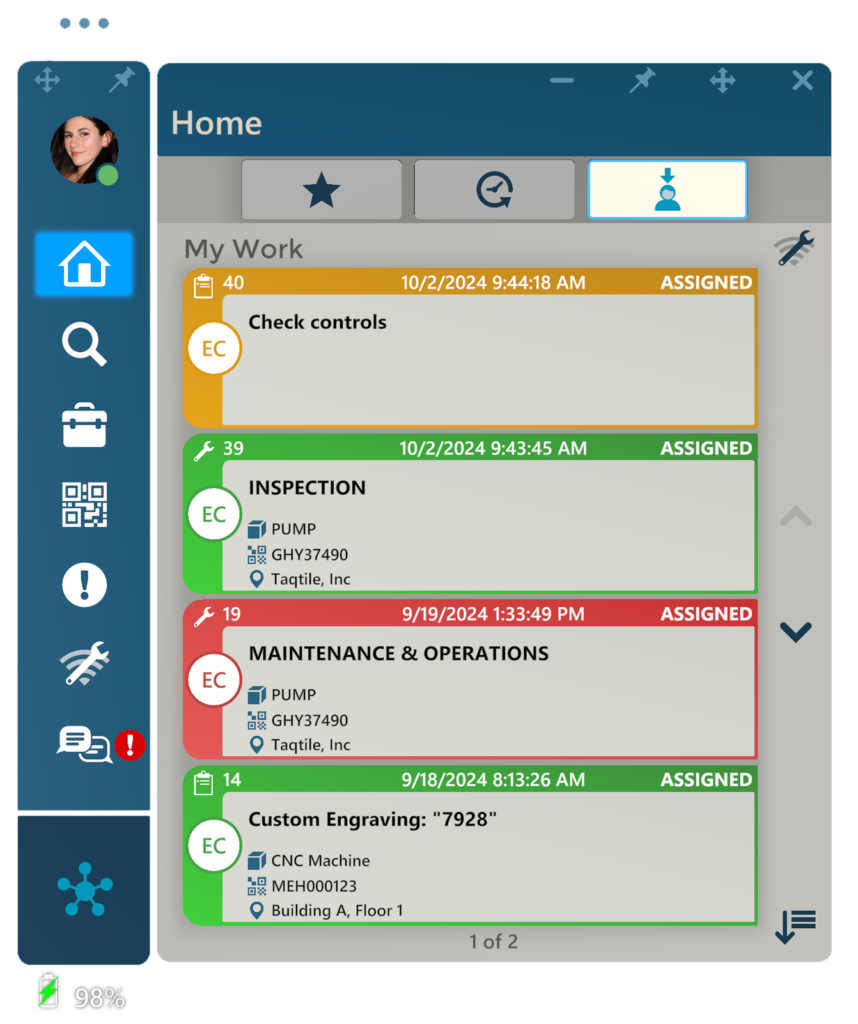
Any active (‘Assigned’ or ‘In Progress’) Jobs or Tasks assigned to you will show under My Work. By default, Work is sorted from newest to oldest based on the last updated time. Use the sort option
### My Work
Any active (‘Assigned’ or ‘In Progress’) Jobs or Tasks assigned to you will show under My Work. By default, Work is sorted from newest to oldest based on the last updated time. Use the sort option  in the lower right-hand corner to reverse the sort order.
 #### Work Listings
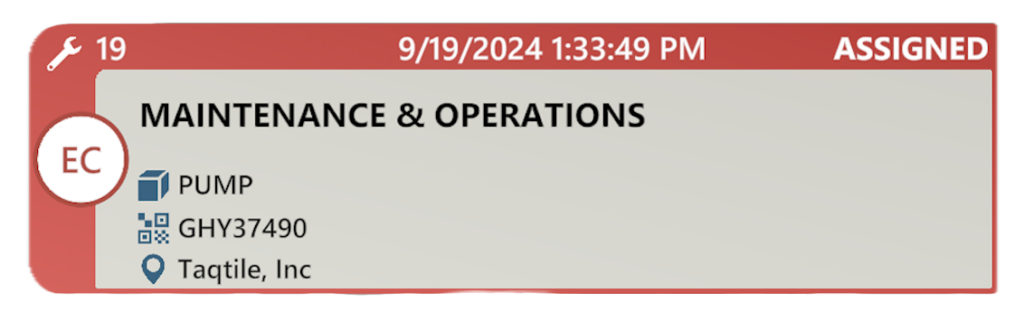
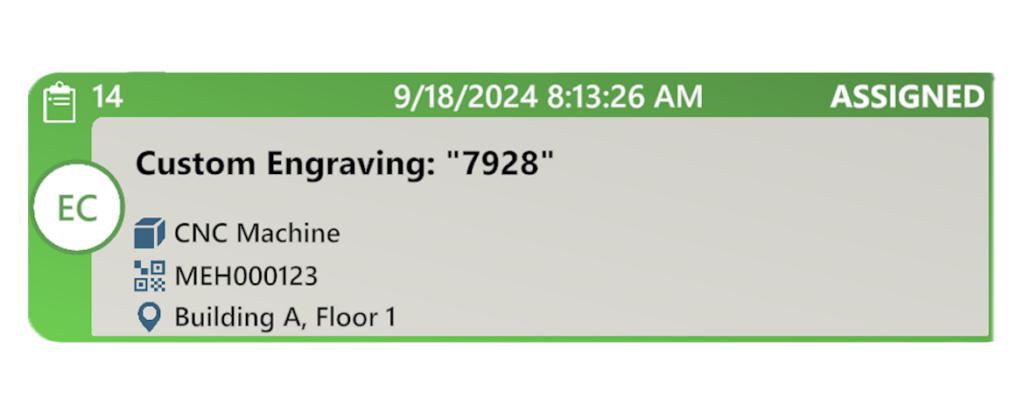
Each Work item has a Work listing. Work listings include all relevant information to help you quickly identify key information to prioritize work and locate the associated Asset.
##### Job:
#### Work Listings
Each Work item has a Work listing. Work listings include all relevant information to help you quickly identify key information to prioritize work and locate the associated Asset.
##### Job:
 ##### Task:
 #### Offline Work
\**Note: Tasks cannot be taken offline*
* To take Jobs offline for working without a network connection, select ‘**Work Offline Setup**'
#### Offline Work
\**Note: Tasks cannot be taken offline*
* To take Jobs offline for working without a network connection, select ‘**Work Offline Setup**'  * Once Selected, all eligible work will become available to be selected and saved.
* Selected Jobs will show a checkmark in the avatar circle of the Work Listing
* Once Selected, all eligible work will become available to be selected and saved.
* Selected Jobs will show a checkmark in the avatar circle of the Work Listing
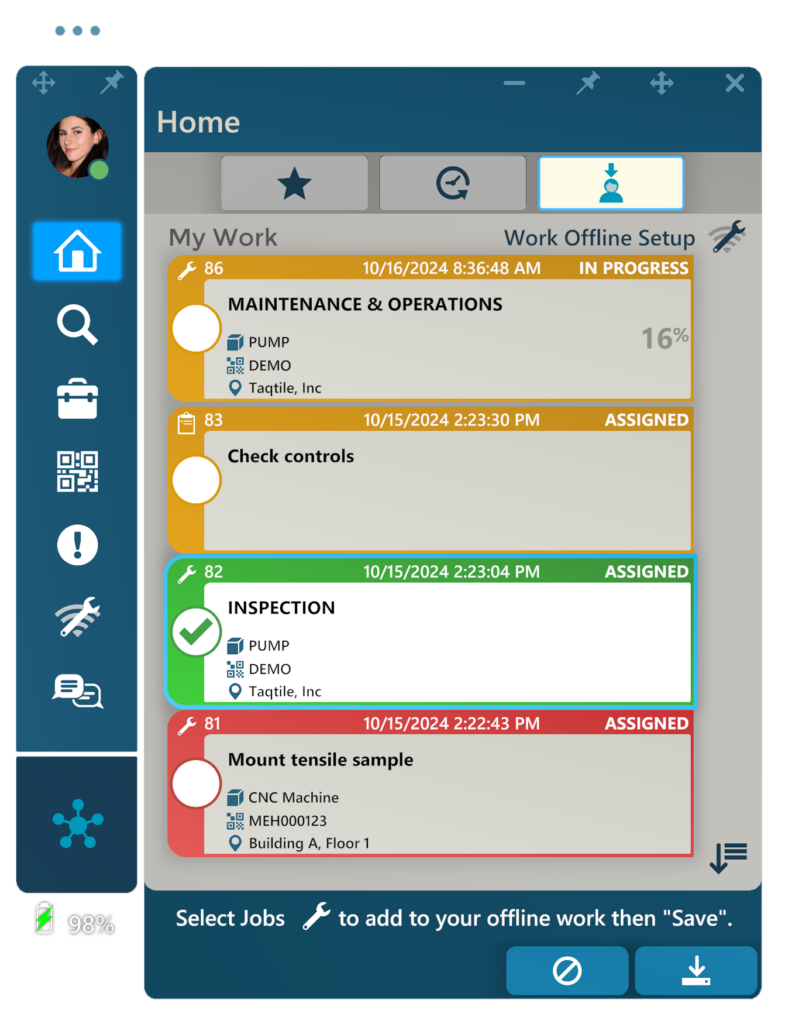 After selecting the desired Jobs, select **Save** to sync them to an offline work package.