> ## Documentation Index
> Fetch the complete documentation index at: https://docs.taqtile.com/llms.txt
> Use this file to discover all available pages before exploring further.
# The Work Board in the iPadOS Application
> Guide to creating, assigning, and completing jobs and work items in Manifest.
## Work Board Overview
### About the Work Board
The Work Board is a centralized view of all Work organized by status, and Org where applicable. The Manifest iPadOS Work Board uses the Kanban system to provide users a clear visualization of all the current Work in progress and a quick way to find Unassigned Jobs and/or Tasks that need to be completed. Finding the Work Board
The Work Board can be accessed by selecting **Work** from the Tab Bar.
## Using the Work Board
#### Org Selector
If Orgs are set up for your domain, an Org selector will be located in the upper-left corner of the Work Board. Tap the Org selector to switch Orgs. Only Work related to the selected Org will load in the Work Board.
#### My Work
The Work Board defaults to display only Work assigned to you, in addition to any Unassigned Jobs and Tasks. To view All Work, select the All Work tab and all Jobs and Tasks for the domain or selected Org will be displayed.
#### Work Type
To filter by Work Type, select the Work Type dropdown, and choose the desired type from the list. Work is divided into the following types:
*  **Jobs:**
* A Job is a procedure performed using the Manifest application by following a set of step-by-step instructions previously authored as a Template
*
**Jobs:**
* A Job is a procedure performed using the Manifest application by following a set of step-by-step instructions previously authored as a Template
*  **Tasks**
* Tasks are free-form Work items that fall outside the parameters of a set Template and allow users to impart important to-do information via an assignable medium within Manifest, either on-the-fly during a Job or directly from the Main Menu
#### Filter by Priority
To filter by priority, select the Priority dropdown, and choose the desired priority level from the list.\
Priority is color-coded as follows:
* Red = High
* Yellow = Medium
* Green = Low
**Tasks**
* Tasks are free-form Work items that fall outside the parameters of a set Template and allow users to impart important to-do information via an assignable medium within Manifest, either on-the-fly during a Job or directly from the Main Menu
#### Filter by Priority
To filter by priority, select the Priority dropdown, and choose the desired priority level from the list.\
Priority is color-coded as follows:
* Red = High
* Yellow = Medium
* Green = Low
 ## Work Board Basics
### Status columns
The Work Board groups all Work in columns by the following parameters:
* Unassigned
* Assigned
* In Progress
* Completed
## Work Board Basics
### Status columns
The Work Board groups all Work in columns by the following parameters:
* Unassigned
* Assigned
* In Progress
* Completed
 ### Work Listings
Each Work item has a Work Listing. The Work Listing includes relevant information to help users quickly identify key information to prioritize their Work. Work Listings include the following information (where relevant):
* **Work Type**
* Job
* Task
* **Work ID**
* **Date and/or % Complete**
* Last updated date OR Percentage (%) complete
* **Priority**
* indicated by color: High (Red), Medium (Yellow), Low (Green)
* **Avatar:**
* Assigned Operator’s avatar or initials (Team icon indicates that the Work item is a Team Job)
* **Work Title**:
* derived from the Job Template name or Task Description
* **Asset Class**: Make and Model
### Work Listings
Each Work item has a Work Listing. The Work Listing includes relevant information to help users quickly identify key information to prioritize their Work. Work Listings include the following information (where relevant):
* **Work Type**
* Job
* Task
* **Work ID**
* **Date and/or % Complete**
* Last updated date OR Percentage (%) complete
* **Priority**
* indicated by color: High (Red), Medium (Yellow), Low (Green)
* **Avatar:**
* Assigned Operator’s avatar or initials (Team icon indicates that the Work item is a Team Job)
* **Work Title**:
* derived from the Job Template name or Task Description
* **Asset Class**: Make and Model
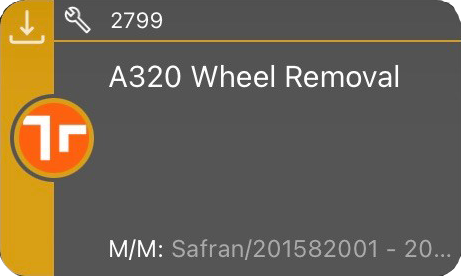 Some Work Listings also include icon buttons for certain actions:
*
Some Work Listings also include icon buttons for certain actions:
*  **Download icon**
* For syncing Work to the users’ Offline Work Package
* Available on self-assigned Work in the “Assigned” and “In Progress” columns
*
**Download icon**
* For syncing Work to the users’ Offline Work Package
* Available on self-assigned Work in the “Assigned” and “In Progress” columns
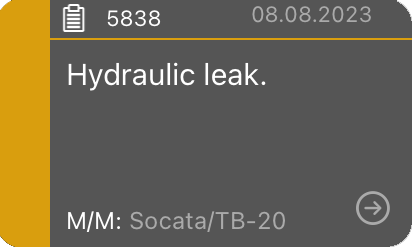
*  **Arrow icon**
* For assigning Work to self
* Available on Work in the “Unassigned” column
**Arrow icon**
* For assigning Work to self
* Available on Work in the “Unassigned” column
 ### Additional options
#### Add Work
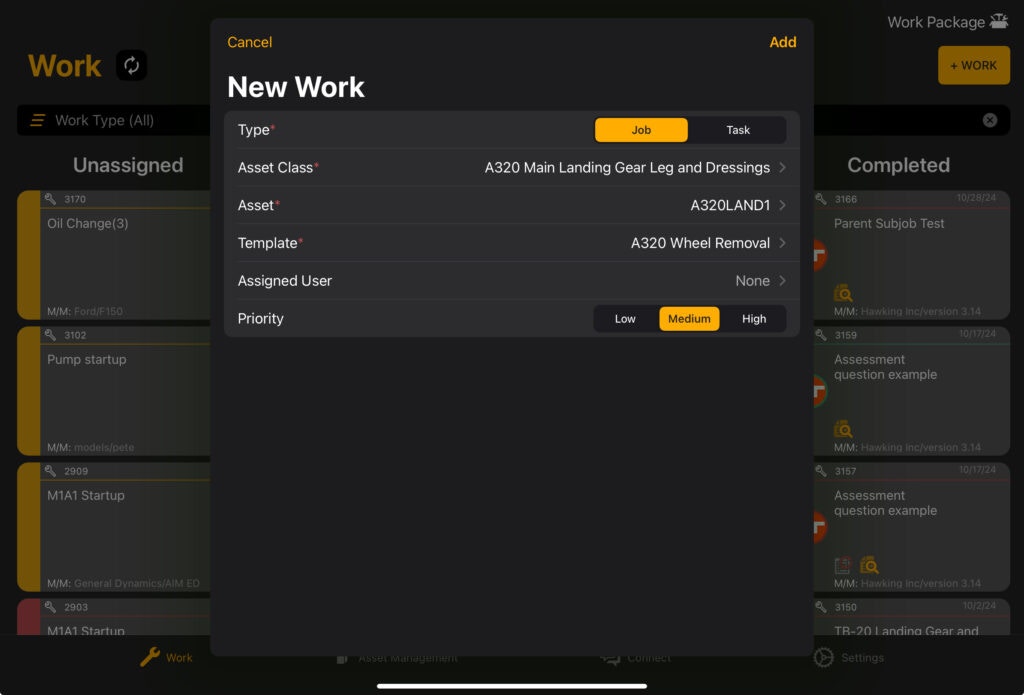
Select **+ Add Work** to add a new Job or Task.
### Additional options
#### Add Work
Select **+ Add Work** to add a new Job or Task.
 ### Create an Offline Work Package
If your Work will be performed in an area with limited to no network connectivity, Manifest Offline capabilities enable you to save your Work into an Offline Work Package to be completed in a disconnected environment, and then synced with the server when connectivity is restored.
#### Steps for creating an Offline Work Package:
* Download Work using the download icon at the top left corner of any desired Work Listings currently assigned to you
* *\*Note: Users cannot download Unassigned Work or Work not assigned to them*
* *\*Note: Tasks cannot be taken offline*
* Select **Work Package** in the righthand corner of the Work Board. A window will dropdown to show the downloaded Work item, sorted by status.
### Create an Offline Work Package
If your Work will be performed in an area with limited to no network connectivity, Manifest Offline capabilities enable you to save your Work into an Offline Work Package to be completed in a disconnected environment, and then synced with the server when connectivity is restored.
#### Steps for creating an Offline Work Package:
* Download Work using the download icon at the top left corner of any desired Work Listings currently assigned to you
* *\*Note: Users cannot download Unassigned Work or Work not assigned to them*
* *\*Note: Tasks cannot be taken offline*
* Select **Work Package** in the righthand corner of the Work Board. A window will dropdown to show the downloaded Work item, sorted by status.
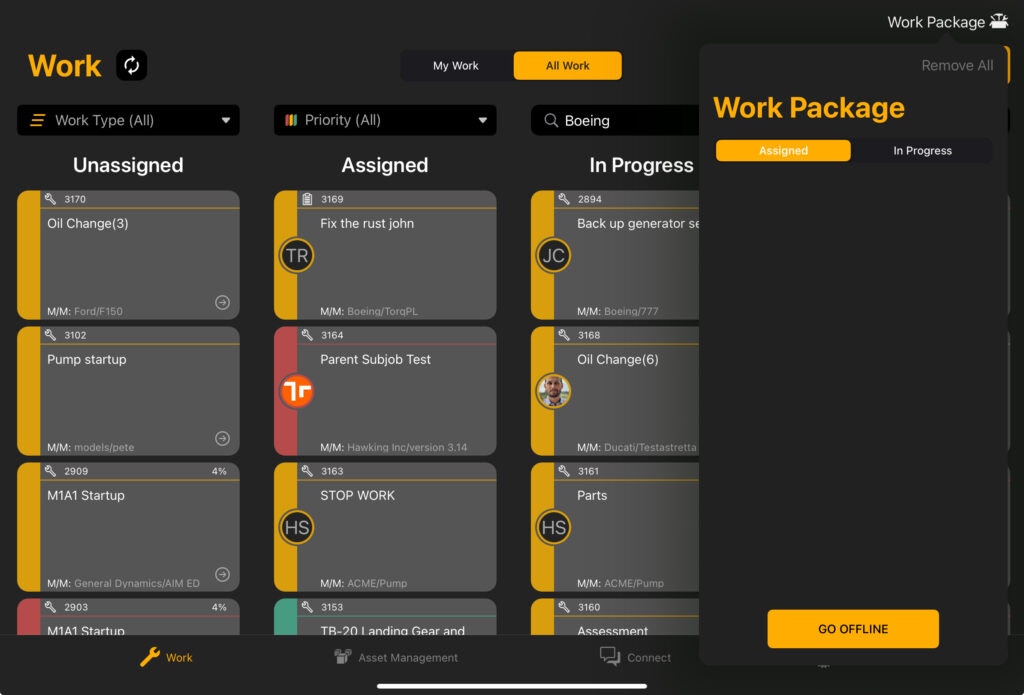 * If needed, use **Remove All** button or the trash can icon at the upper left-hand corner of each Work Card to remove Work from the Offline Work Package.
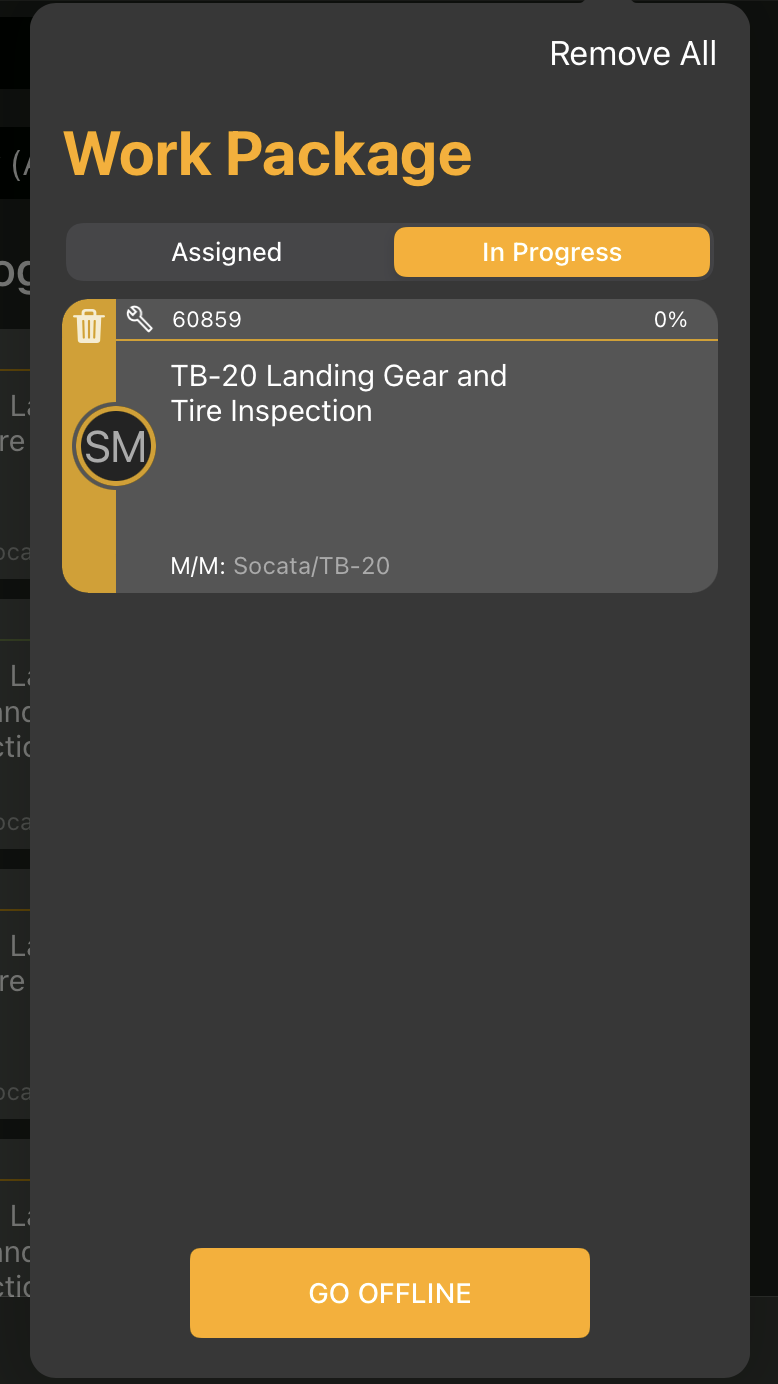 * Once the desired Work items have been downloaded, select ‘Go Offline’
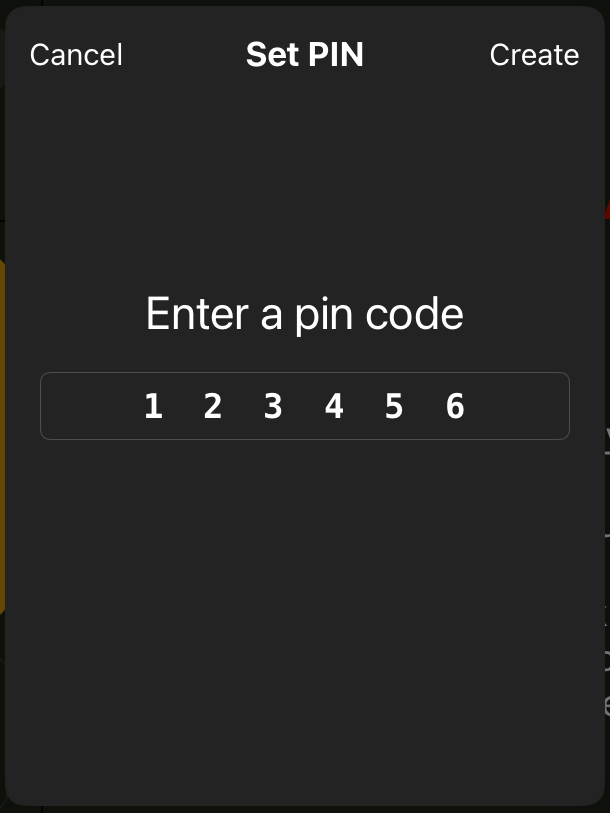
 * If this is the first-time taking work offline the user will be prompted to set a 6-digit security PIN for Offline Login
 ### Refresh
 Users can select the refresh button in the upper right-hand corner of the Work Board tab to load the latest updates.
### Initiating Work
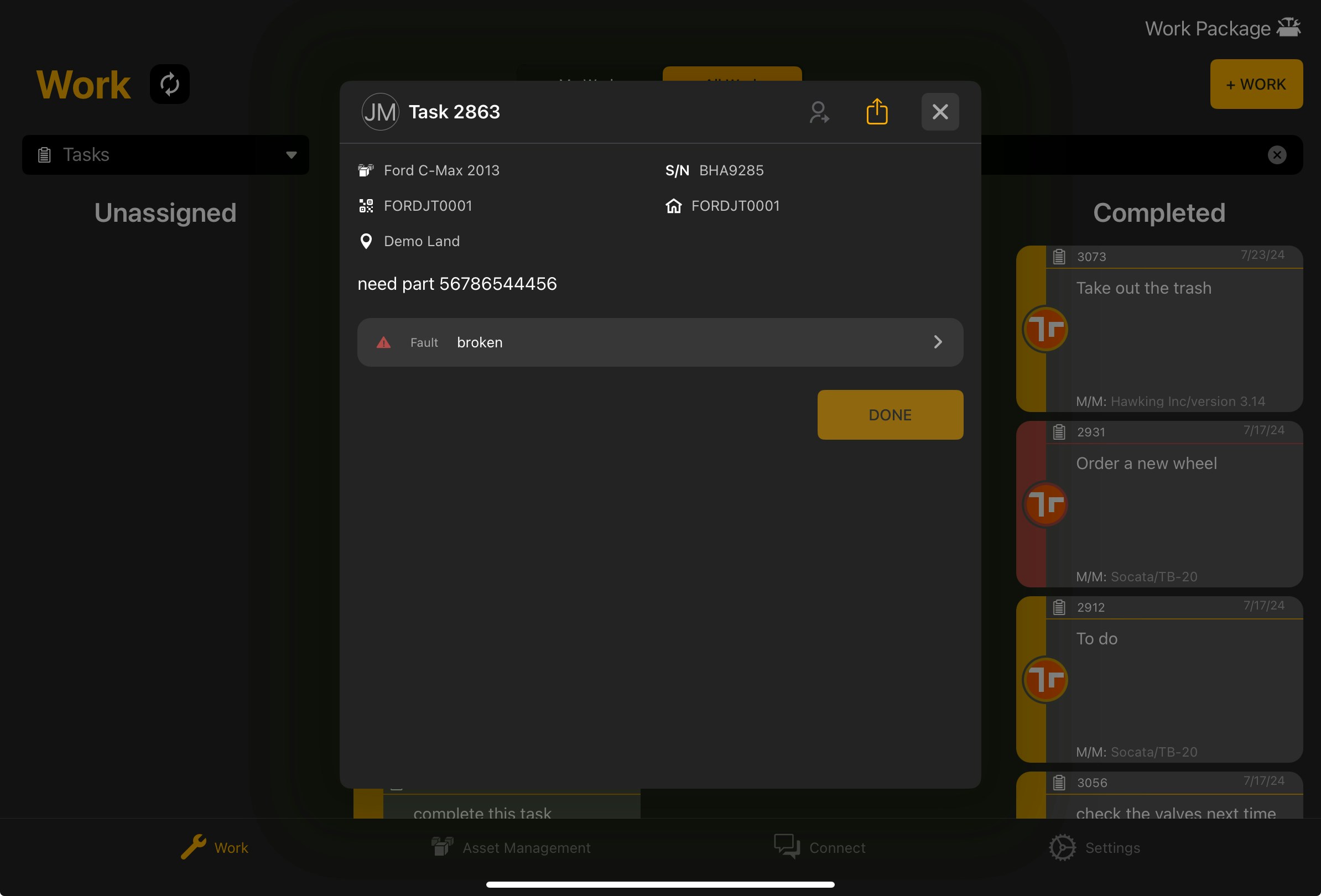
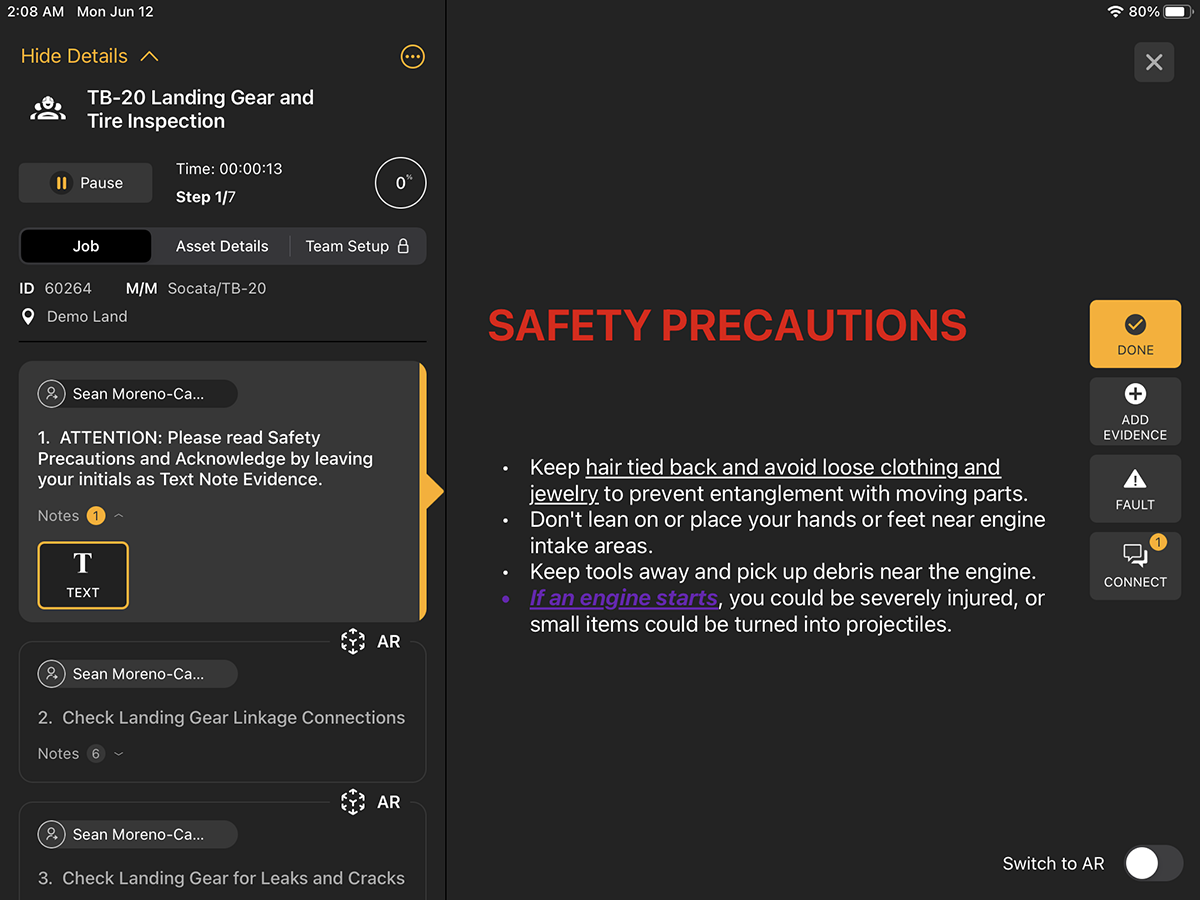
To open Work Items, select the desired Work Listing from the Work Board. Work items will open to one of the following views depending on the Work Type selected.
* **Task View**
Users can select the refresh button in the upper right-hand corner of the Work Board tab to load the latest updates.
### Initiating Work
To open Work Items, select the desired Work Listing from the Work Board. Work items will open to one of the following views depending on the Work Type selected.
* **Task View**
 * **Job View**
 ## More on Work
### Function Details
* [About Work](/about-work)
* [About Faults](/about-faults)
### Application Guides
* [Work in the Manifest Web Application](/work-in-the-manifest-web-application)
* [Work in the Manifest 3D Application](/work-in-the-manifest-3d-application)
* [Work in the Manifest iPad Application](/work-in-the-manifest-ipados-application)
## More on Work
### Function Details
* [About Work](/about-work)
* [About Faults](/about-faults)
### Application Guides
* [Work in the Manifest Web Application](/work-in-the-manifest-web-application)
* [Work in the Manifest 3D Application](/work-in-the-manifest-3d-application)
* [Work in the Manifest iPad Application](/work-in-the-manifest-ipados-application)