> ## Documentation Index
> Fetch the complete documentation index at: https://docs.taqtile.com/llms.txt
> Use this file to discover all available pages before exploring further.
# Settings in the iPadOS Application
> Settings is the main hub for finding general account and application information. Settings contains a sub-menu of tools and app insights which are reviewed b...
## Settings Overview
Settings is the main hub for finding general account and application information. Settings contains a sub-menu of tools and app insights which are reviewed below.
### To Find Settings:
1. Directly after logging in, you'll land on the **Asset Management** Tab
2. From this initial screen, locate the **Settings** Tab in the bottom right-hand corner of the screen
3. Select **Settings**
 ### Account
 This page displays your account information, including:
* Avatar image (or Manifest placeholder)
* Name
* Title
* Domain: the current Manifest Domain
* User: the email address associated with the your Account
* Roles
* Available Orgs (if relevant to Domain)
Select **Edit Profile** to edit your Avatar image, name, title and communication preferences.
This page displays your account information, including:
* Avatar image (or Manifest placeholder)
* Name
* Title
* Domain: the current Manifest Domain
* User: the email address associated with the your Account
* Roles
* Available Orgs (if relevant to Domain)
Select **Edit Profile** to edit your Avatar image, name, title and communication preferences.
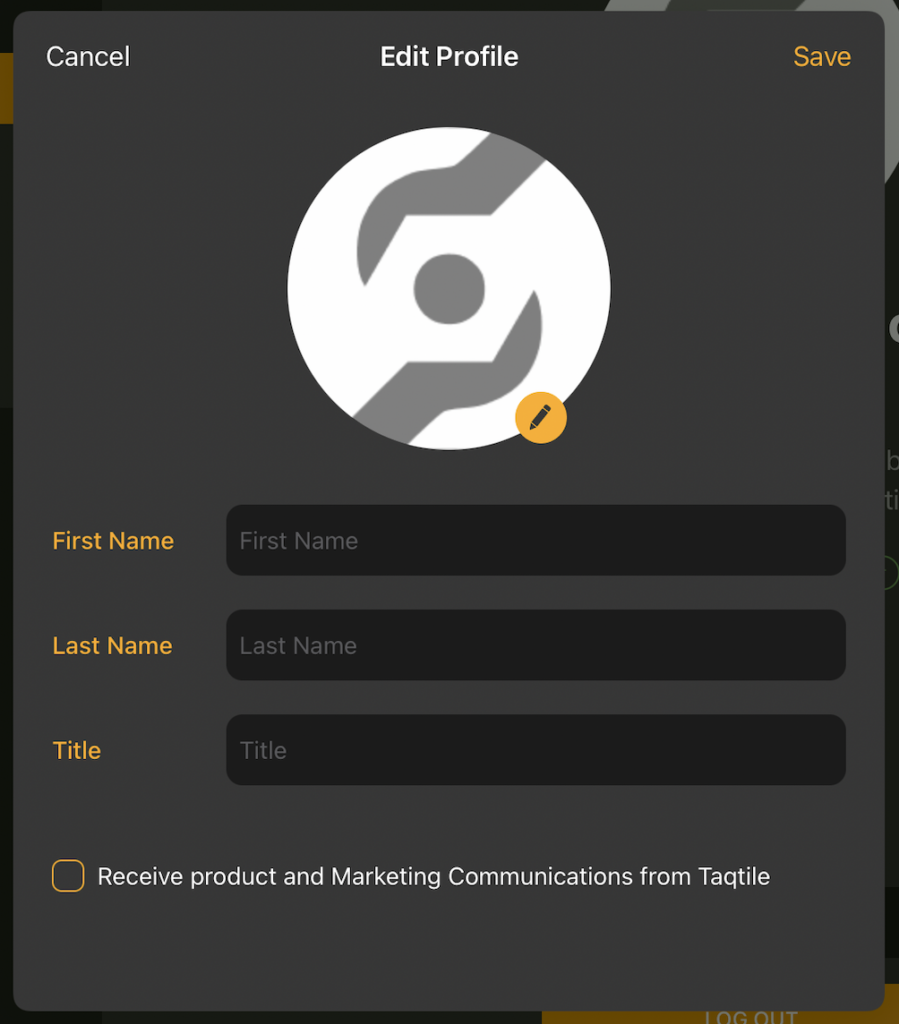 You can also change your password or log out using the corresponding buttons in the Account tab.
### Offline Access Pin
You can also change your password or log out using the corresponding buttons in the Account tab.
### Offline Access Pin
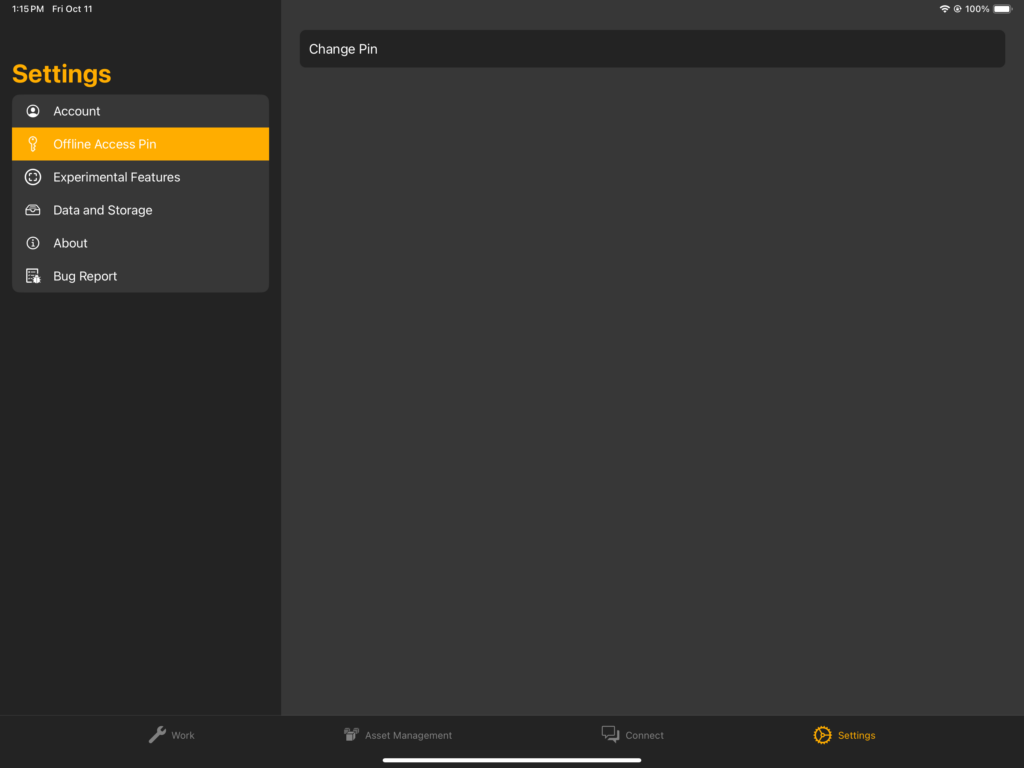 A 6-digit PIN is required to login to Manifest when working in Offline Mode. You will be prompted to create a 6-digit PIN when creating your first Offline Work Package or can generate and update this PIN via Settings.
### Data and Storage
A 6-digit PIN is required to login to Manifest when working in Offline Mode. You will be prompted to create a 6-digit PIN when creating your first Offline Work Package or can generate and update this PIN via Settings.
### Data and Storage
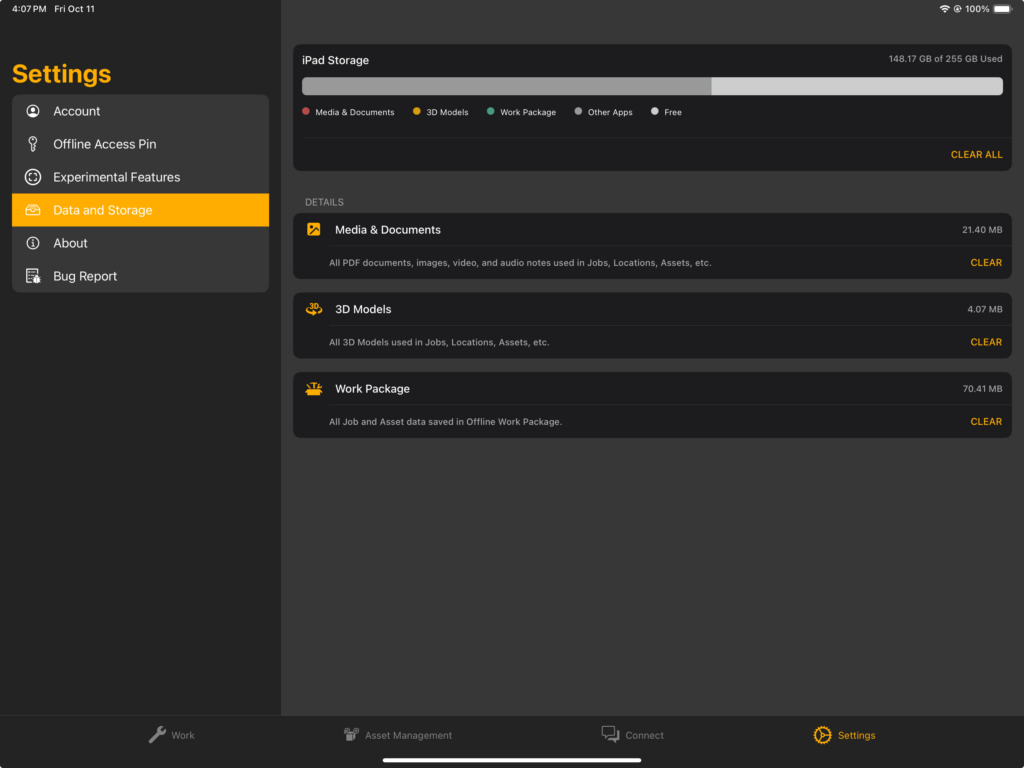 Your iPad will cache media, documents, 3D model files, and Work Package data as they are viewed – this makes it quicker to load this content on subsequent uses. The ‘Data and Storage’ section provides a visualization of this data usage compared to other data on your iPad.
You can clear all cached Manifest data from the device by selecting **CLEAR ALL** or erase data from specific categories by selecting **CLEAR** in each section.
### Experimental Features
Your iPad will cache media, documents, 3D model files, and Work Package data as they are viewed – this makes it quicker to load this content on subsequent uses. The ‘Data and Storage’ section provides a visualization of this data usage compared to other data on your iPad.
You can clear all cached Manifest data from the device by selecting **CLEAR ALL** or erase data from specific categories by selecting **CLEAR** in each section.
### Experimental Features
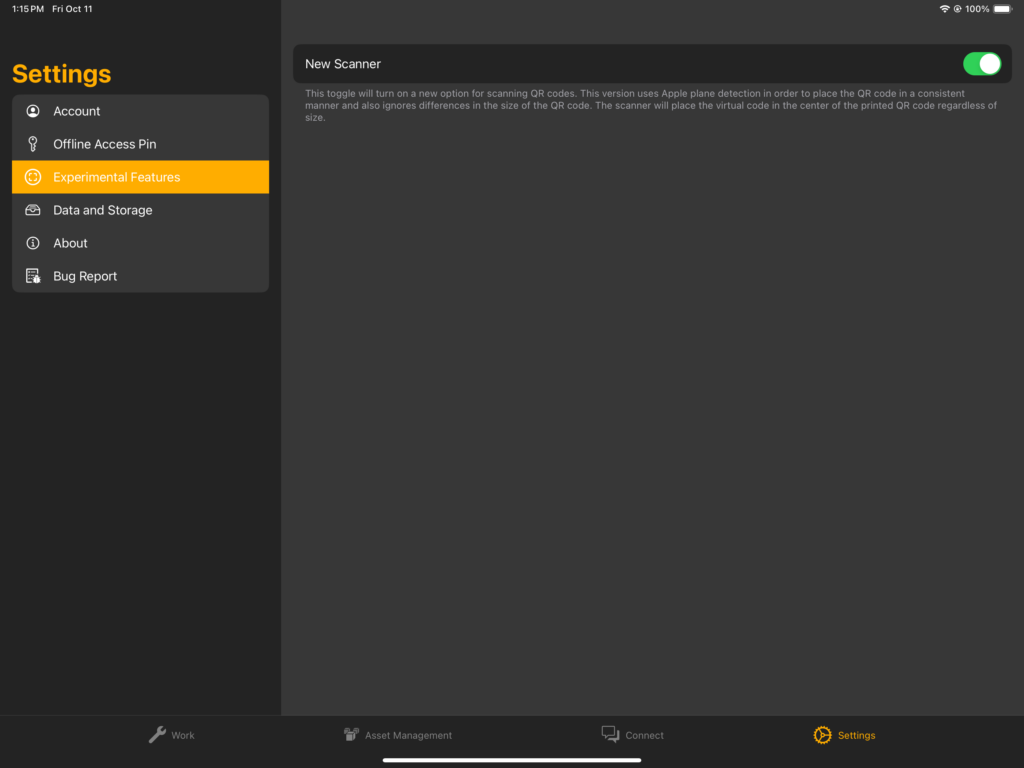 This page presents you with options to turn on and off new Manifest features.
### About
This page presents you with options to turn on and off new Manifest features.
### About
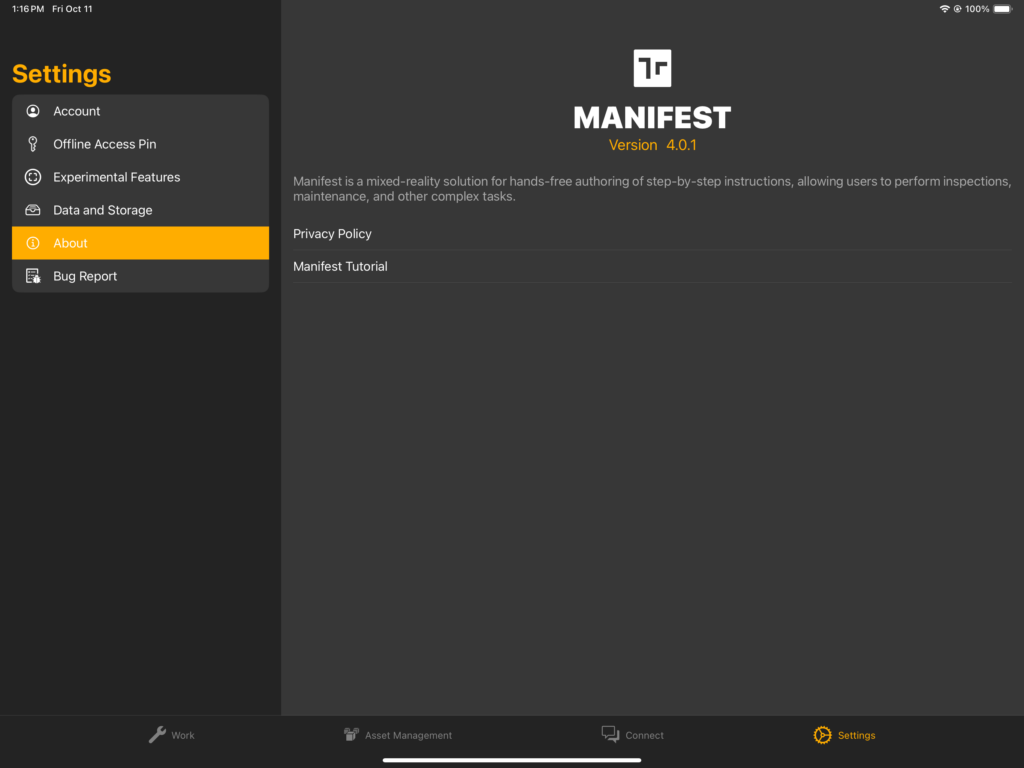 This page provides information about the app itself, displaying the version number of the application installed and a short description of Manifest.
Selecting **Privacy Policy** opens the [Taqtile General Privacy Policy](https://taqtile.com/privacy/).
Selecting **Manifest Tutorial** reopens the Guided Tour, an automated tour of the application presented by Mani, our Manifest expert. The tour runs you through the basics of the Manifest iPad application and tools.
### Bug Report
This page provides information about the app itself, displaying the version number of the application installed and a short description of Manifest.
Selecting **Privacy Policy** opens the [Taqtile General Privacy Policy](https://taqtile.com/privacy/).
Selecting **Manifest Tutorial** reopens the Guided Tour, an automated tour of the application presented by Mani, our Manifest expert. The tour runs you through the basics of the Manifest iPad application and tools.
### Bug Report
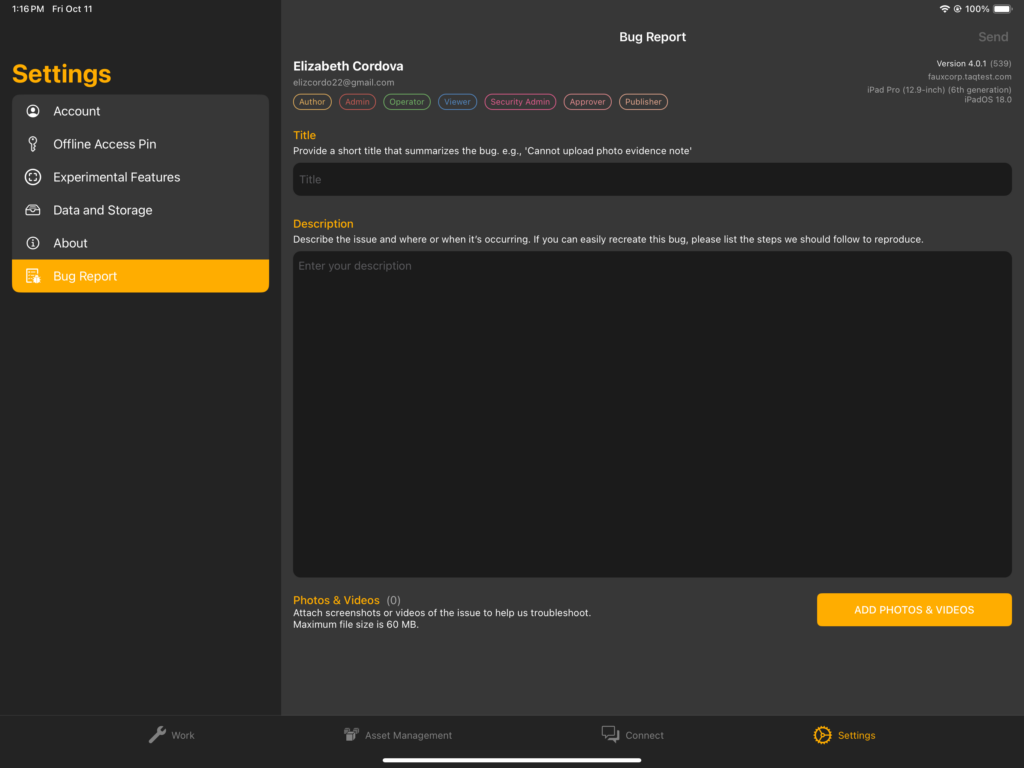 The Bug Report page can be used to submit a bug report to the Manifest Support Team. The report will automatically notify the Manifest Support Team and include any information provided in the title and description, along with any photos or videos attached.
#### To submit a bug report:
1. Select **Settings** from the bottom menu
2. Select **Bug Report**
3. Enter a Title for the Bug Report (a brief description of the issue)
4. Enter a Description of the issue, including additional details that may be useful for troubleshooting (asset name, template name, steps to reproduce)
5. Select **Add Photos & Videos** to attach any relevant images or recordings of the issue
6. Select **Send** in the upper right-hand corner to submit the report
If it is easier to share additional information about the issue via email, send a note to [support@taqtile.com](mailto:support@taqtile.com)
The Bug Report page can be used to submit a bug report to the Manifest Support Team. The report will automatically notify the Manifest Support Team and include any information provided in the title and description, along with any photos or videos attached.
#### To submit a bug report:
1. Select **Settings** from the bottom menu
2. Select **Bug Report**
3. Enter a Title for the Bug Report (a brief description of the issue)
4. Enter a Description of the issue, including additional details that may be useful for troubleshooting (asset name, template name, steps to reproduce)
5. Select **Add Photos & Videos** to attach any relevant images or recordings of the issue
6. Select **Send** in the upper right-hand corner to submit the report
If it is easier to share additional information about the issue via email, send a note to [support@taqtile.com](mailto:support@taqtile.com)