
AI Verify is currently a Beta feature, available on the Web app only. iPad and 3D apps are not supported in this release.
How It Works
- You set the reference. As an Author, you add a photo note to a step and turn on AI Verify.
- The Operator submits a photo. When working the Job, the Operator uploads their evidence and taps Verify.
- AI Verify returns a result. Pass or Fail, plus a match score and reasoning.
- Failures can be retried or overridden. Overriding a failure creates a Fault on the step.
Things to Know
AI Verify isn’t perfect. It’s powered by a general-purpose LLM that hasn’t been fine-tuned on your equipment, products, or domain. Accuracy can vary with lighting, angle, image quality, and how specialized the work is. Treat AI Verify as an assistive check, not a replacement for human review. Photos are sent to a third-party AI provider. When AI Verify runs, the reference image and submitted photo are sent to Anthropic to run the comparison.- Taqtile does not use AI Verify uploads to train any models.
- Anthropic states that data sent through its API is not used to train its models.
- Photos still leave Taqtile’s infrastructure during processing — avoid AI Verify on steps that capture sensitive material (PII, regulated, or classified content) unless your organization has approved sending this data externally.
- Available on the Web app only*
- The step must include a photo note to use as the reference image
- Only one AI Verify configuration is allowed per step
- Operators must submit a photo for verification before they can move on to the next step
For Authors: Setting Up AI Verify on a Step
- Open a draft template and select Edit.
- Navigate to the step where you want to enable AI Verify.
- Add a photo note containing your reference image — this is the example the AI will compare against.
- Add a required photo evidence note — this is what the Operator will fill in when running the Job.
- Toggle AI Verify on. (The toggle only enables once at least one photo note has been added to the step.)
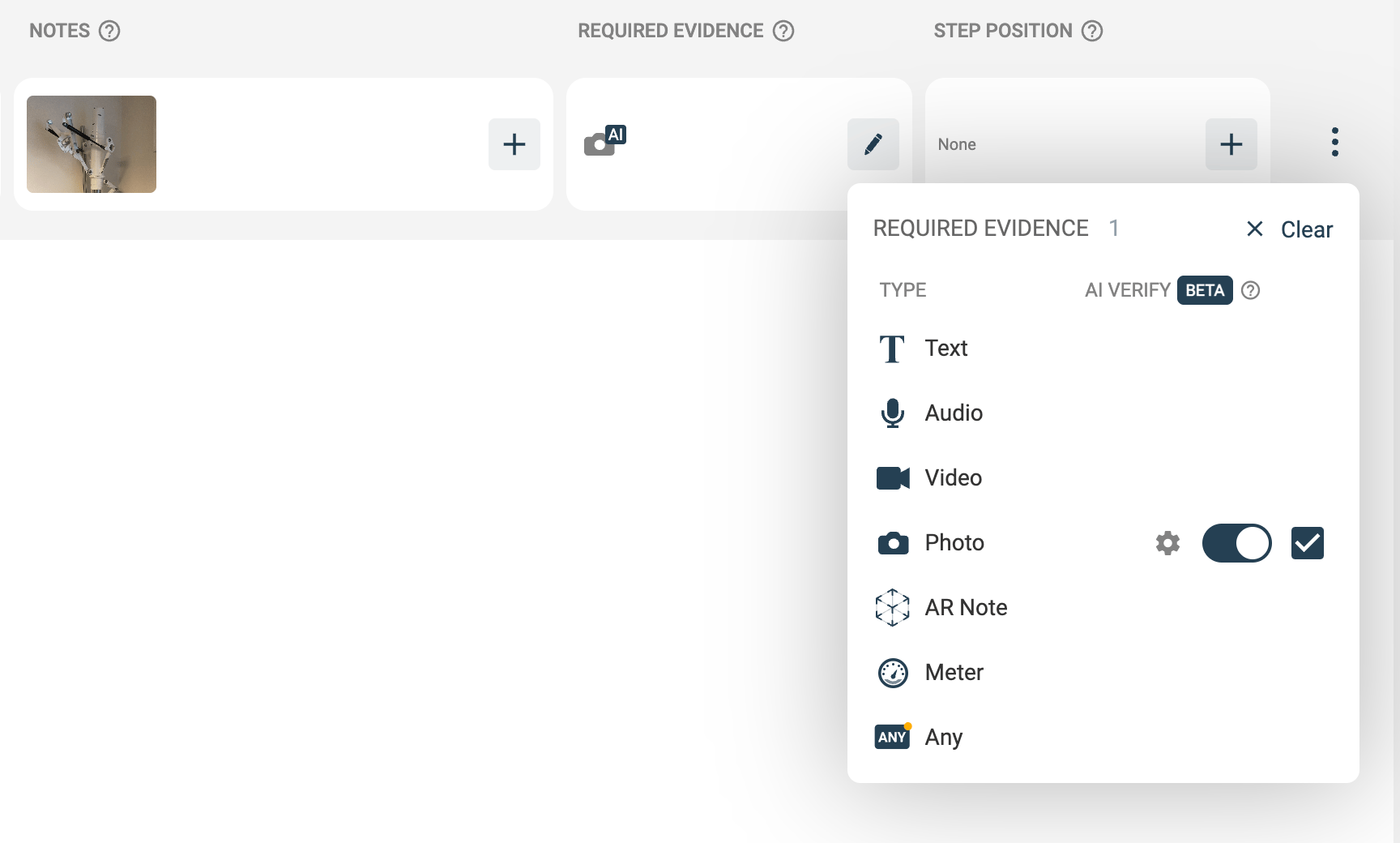
- In the Select Reference Photo modal that appears:
- Select your reference photo (if the step has more than one photo note attached).
- Adjust the match threshold if needed. The default is 80% — meaning the photo evidence must score at least an 80% match against the reference to pass.
- Enter verification details (optional) describing what the Operator’s photo should show or exclude (for example, “Cabinet door is closed and latched.”).
- Test with a sample photo to confirm the prompt and threshold behave as expected.
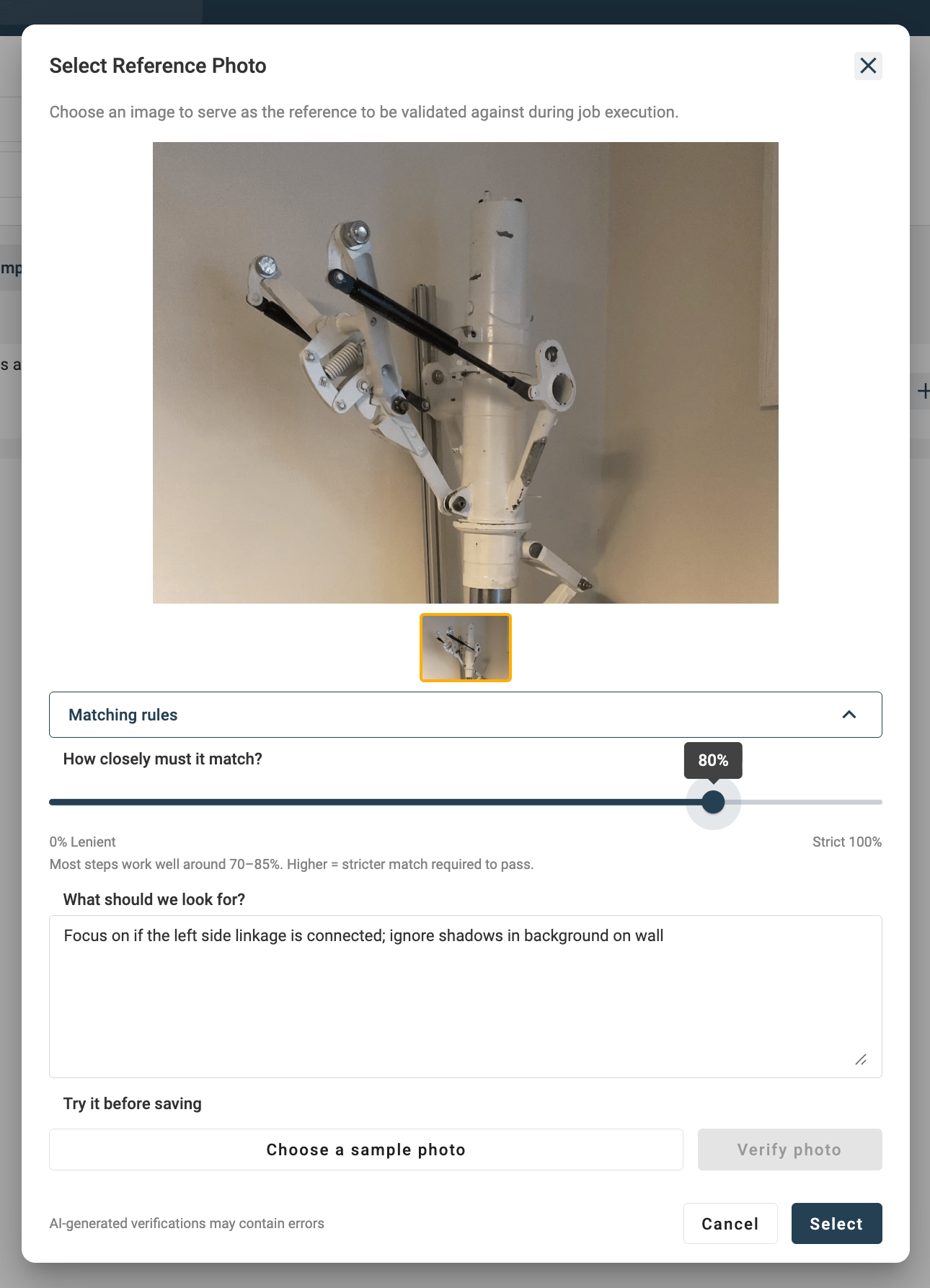
- Select the Select button, then save the template.
You can update the reference image, edit the prompt, change the threshold, or turn AI Verify off at any time by selecting the gear icon.
General Authoring Tips
- Keep your reference image clean. Well-lit, in focus, and framed on what matters.
- Only use custom instructions when needed. The built-in instructions are often enough. Test a few sample images with just a threshold set first, and add custom details only if the results aren’t accurate enough.
- Consistent conditions. Capture your reference photo in conditions similar to where Operators will work.
- Test before publishing. Try it yourself with sample photos to confirm AI Verify behaves as expected.
- Use overrides as a signal. A high override rate on a step usually means your reference image, prompt, or threshold needs tuning.
Customizing Verification Details
A good custom prompt is specific and tied to what makes the step “done right.” Avoid vague language like “looks correct” and instead describe exactly what should be visible in the photo. Example prompts to start with:- “All four corner bolts are installed and tightened.”
- “Safety label is centered on the panel and clearly readable.”
- “Red wire is connected to terminal 3; no exposed copper.”
- “Workspace is clear of tools, debris, and packaging.”
- “Indicator light is green.”
- “Protective film has been removed from the display.”
- Name the object and the condition (“door closed” — not just “door”).
- Include counts when they matter (“all four bolts”).
- Keep it to one sentence focused on a single check.
- Match the language to what’s actually visible in the reference image.
For Operators: Using AI Verify on a Job
- Perform the step as instructed.
- Upload your photo evidence. Tip: You can review the reference image directly from the photo upload modal — tap the reference thumbnail to see exactly what the photo should look like.
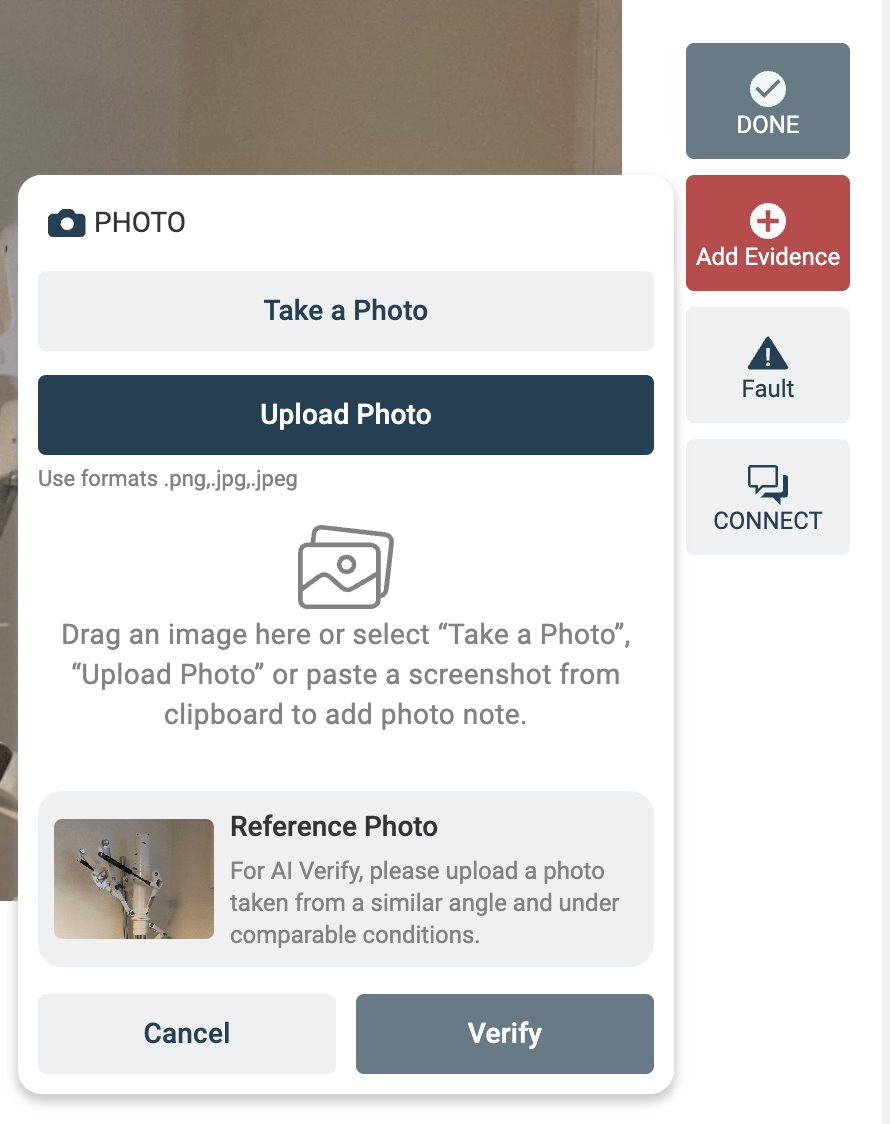
- Select Verify.
- Wait for the result:
- Pass — continue with the Job as usual.
- Fail — you’ll see the match score, decision reasoning, and your options.
- If you receive a Fail, you can:
- Retry by uploading a different photo.
- Override the result if you believe the work is correct.
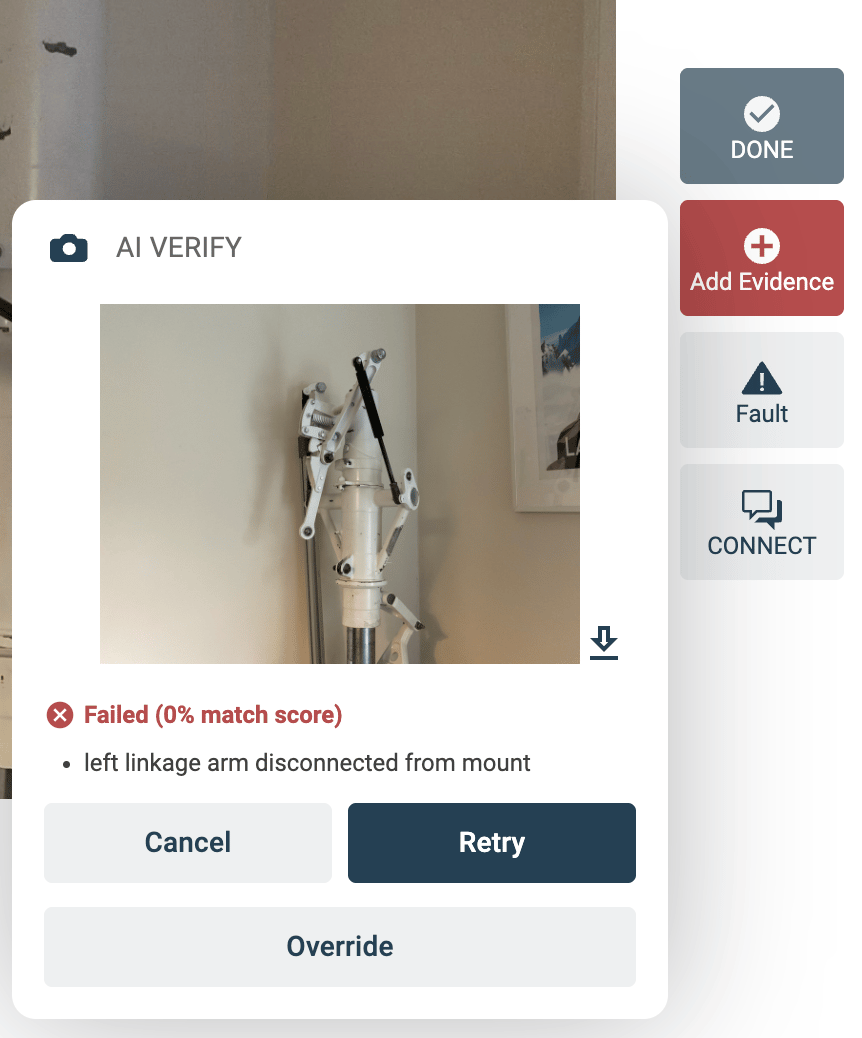
- If you override, a Fault is created automatically with your photo evidence and score details attached. Fill out the Fault details and save it to complete the step.
You can’t mark the step complete until either AI Verify passes or the override Fault is saved.
For Reviewers: Handling AI Verify Overrides
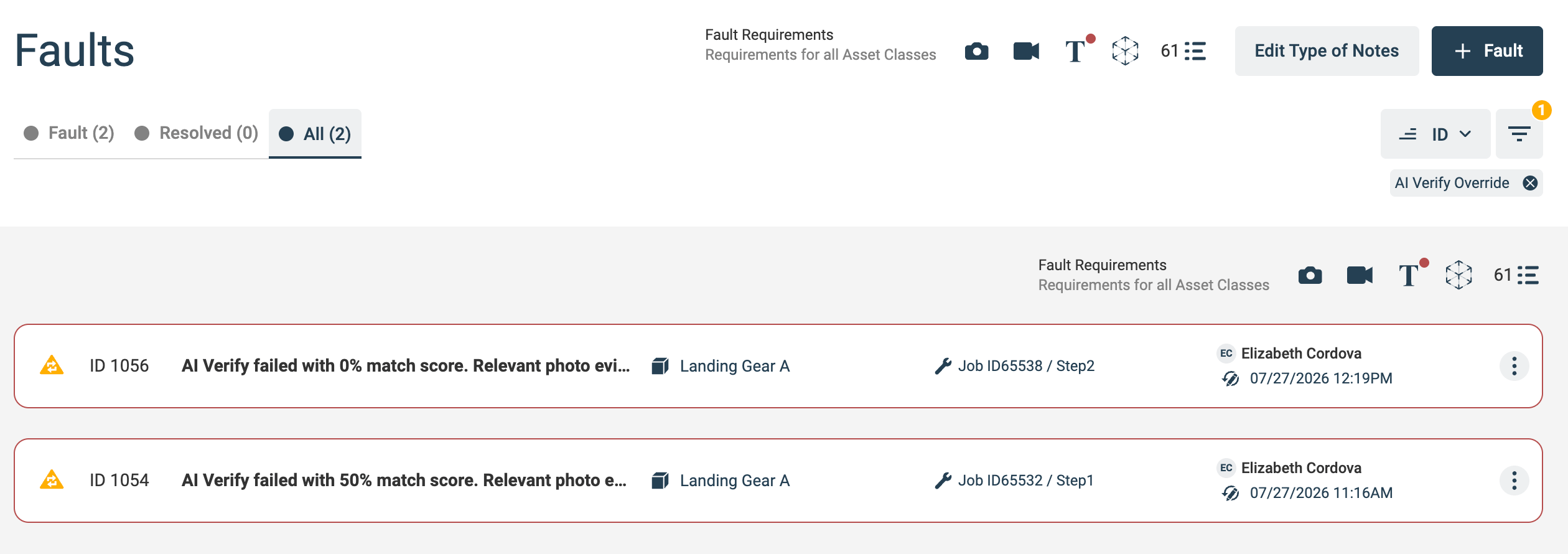
When an Operator overrides a failed verification, the override is recorded as a Fault on the Job step. From the Faults view, you can:- Review the Fault description, the submitted photo, and the AI Verify metadata.
- Use the Source filter to filter for Faults created during AI Verify overrides.
- View the attached notes to see the submitted image and associated AI Verify score results.
- Resolve the Fault if the work was acceptable.
- Create work from the Fault if a follow-up is needed.
FAQs
What is the match score? The percentage match required to pass (default 80%). Does AI Verify work on video or other note types? Not yet. Beta supports photo evidence only. Can Operators skip AI Verify? No. Operators must run the verification, but they can always override a Fail (which creates a Fault for review). Does AI Verify work offline? No. AI Verify requires a network connection to process the image. Is AI Verify available on iPad or 3D apps? No, AI Verify is Web-only for now. What if the AI gets it wrong? Use the override flow. The resulting Fault gives Reviewers full context to resolve it, Authors insight on how to improve step level setup, and us the context to improve AI Verify at the product level.Need help? Contact support.