
Offline setup must happen while you’re connected — you can’t create a PIN or download new content once you’ve lost signal.
How It Works
- Set up offline access. While online, you create a 6-digit Offline PIN and download the procedures you’ll need.
- Download content. Manually download existing content for offline use. Procedures created or edited on Maker version 3.2 or later will download automatically.
- Login to Offline Mode. Enter Offline mode via Settings or the login screen.
- Work without a connection. While offline you can view, edit, or create procedures — all stored locally.
- Reconnect. Nothing uploads automatically. You choose when to sync.
- Sync your changes manually. Save procedures with changes to sync them with Manifest. If the server version changed while you were offline, you’ll be asked if you want to merge the changes, keep your version, keep the server’s, or cancel.
Things to Know
Setup happens online, not offline. Your Offline PIN and your downloaded content both have to be set up before you lose connectivity. There’s no way to enroll a PIN or download new procedures once you’re offline. Your Offline PIN isn’t your Manifest password. It’s a separate 6-digit credential, stored locally on-device. Your PIN and downloaded content are both device-specific. Using a new device? You’ll need to set up your PIN and download your content again — neither carries over automatically. Offline content is cached by domain, not by account. If a different Manifest user in the same domain signs in on the same device, they’ll see whatever offline content was already downloaded there. A procedure only counts as offline-ready once everything in it has downloaded. That includes steps, notes, images, video, PDFs, and models. If any single asset fails to download, the procedure won’t be available offline. Sync is manual, always. Regaining a connection doesn’t trigger an upload by itself. You decide when to sync offline updates, procedure by procedure. Conflict handling exists, but avoid needing it. We recommend not editing the same procedure online (in Manifest or Maker) and offline at the same time, even though the app will prompt you to resolve a conflict if you do. Check the text under the search bar. On the main screen, it always tells you what you’re currently viewing — for example, “Procedures saved for Offline mode.” Get in the habit of glancing at it before you assume what you’re looking at.Setting Up Offline Access
- Sign in to Maker with a live connection.
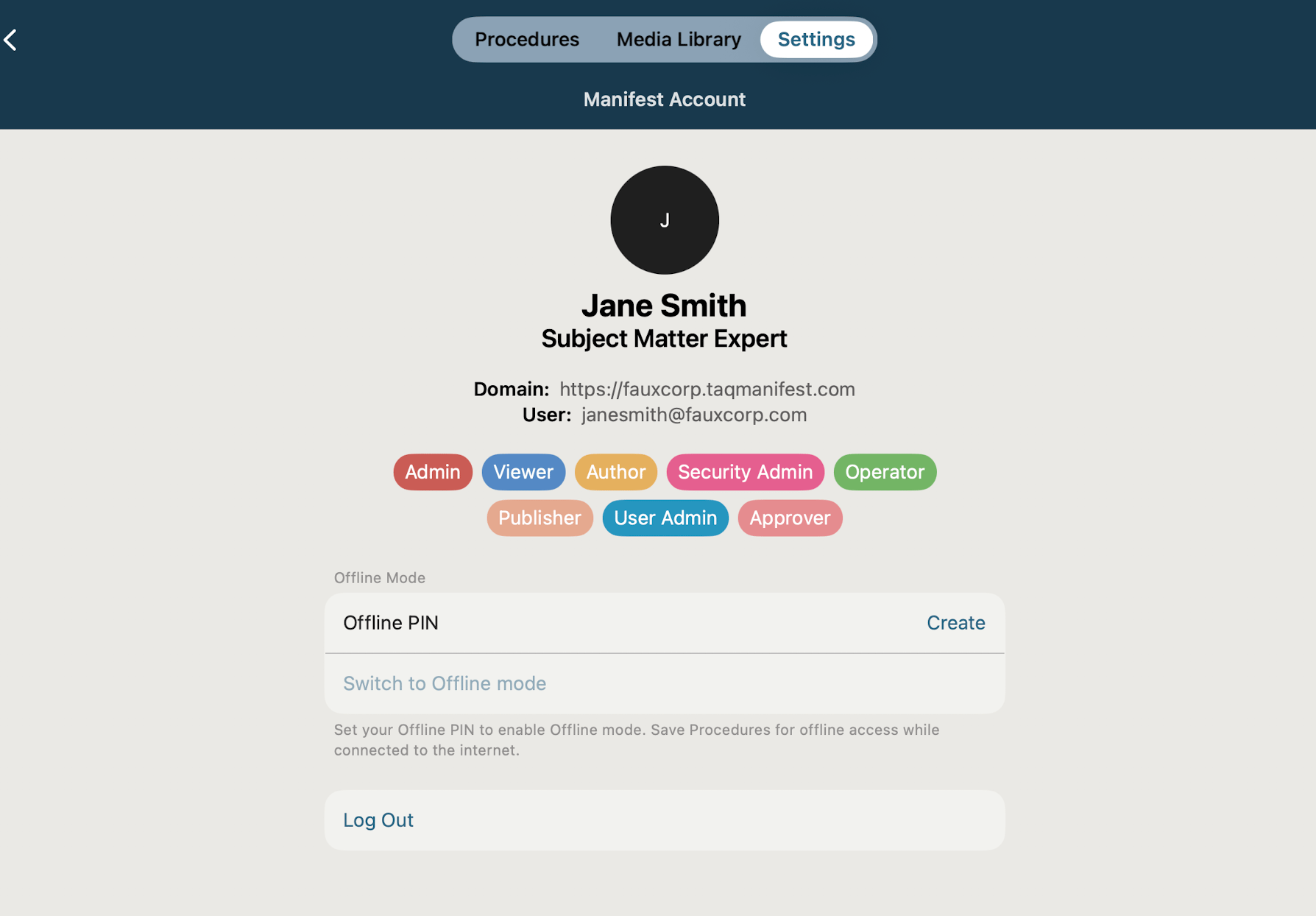
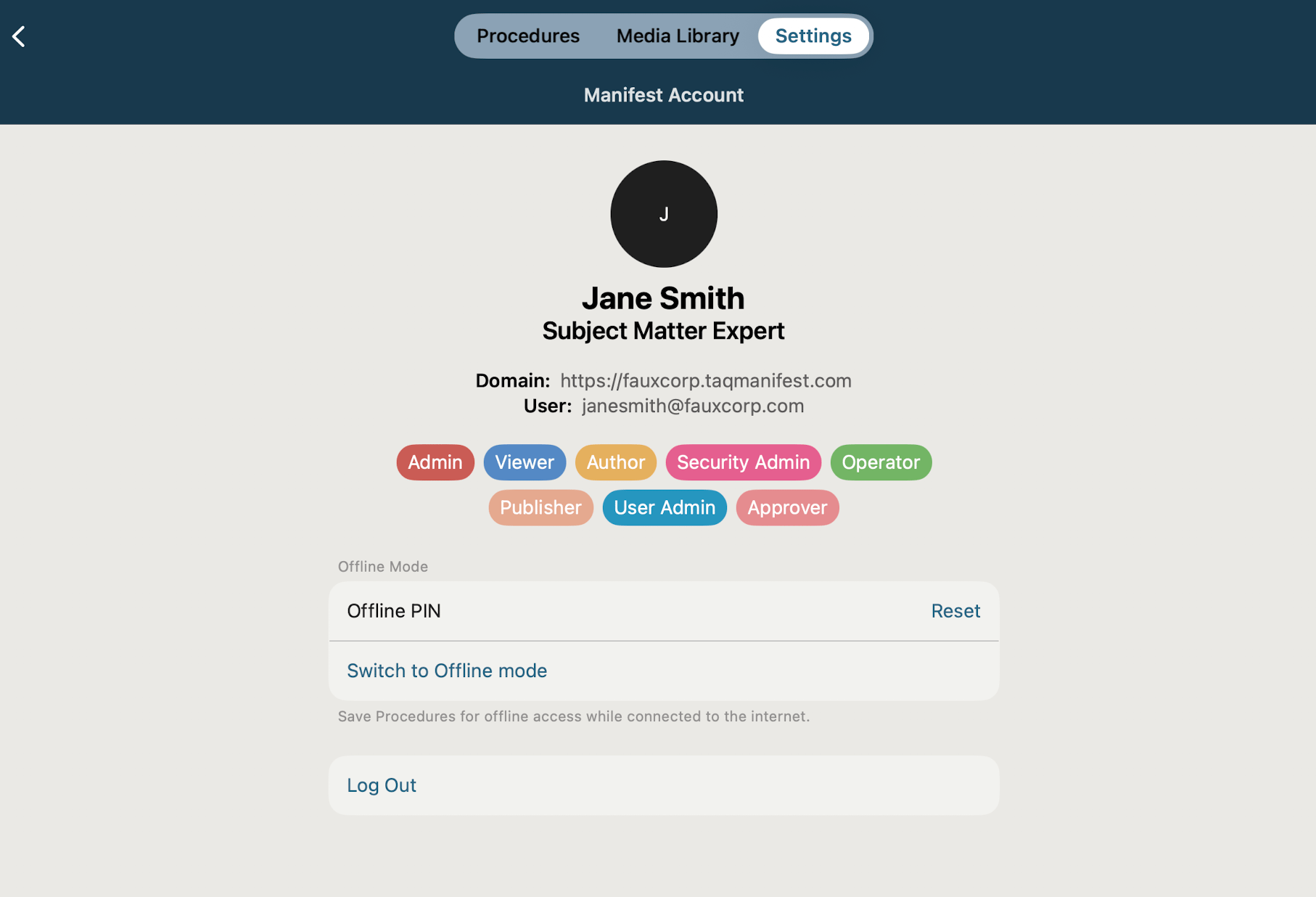
- Go to Settings > Manifest Account > Offline Mode and create your 6-digit Offline PIN.
- Choose what to download. Manually download existing content by selecting the three-dot menu on the procedure or folder card and selecting Save for Offline.
- Procedures you create or edit in Maker version 3.2 or later will automatically download for offline use.
- Confirm your downloads completed. Procedures that downloaded successfully are marked Saved on device.
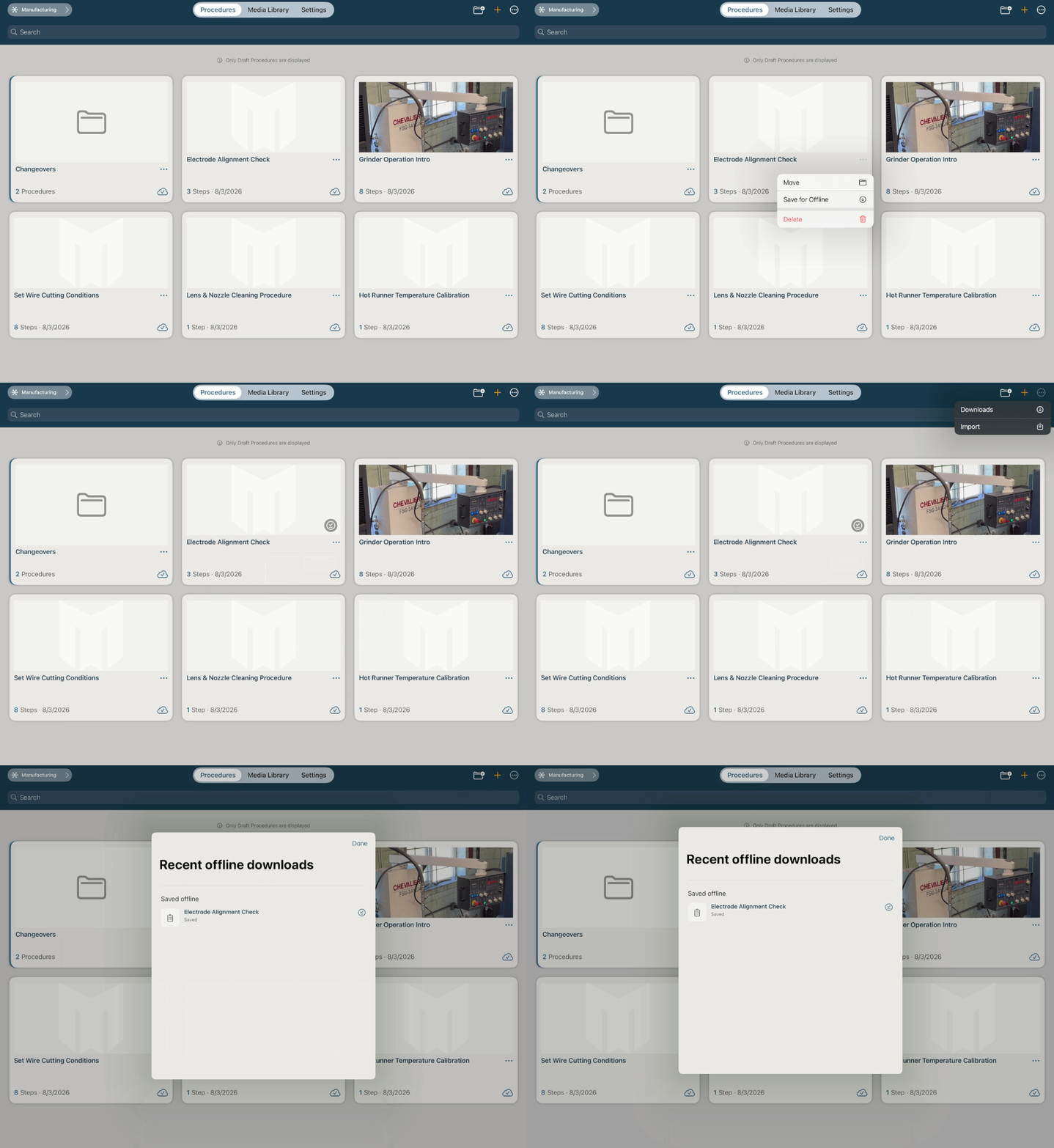
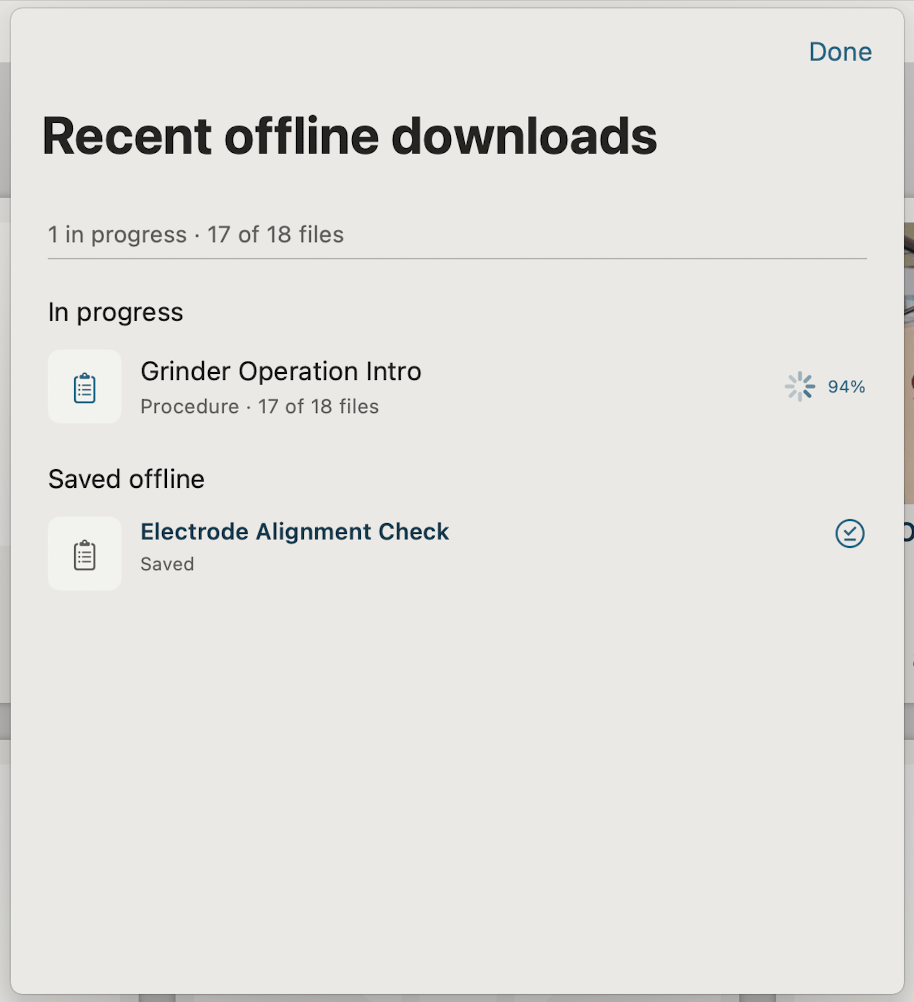
💡Tip: Check download progress or history anytime from the Downloads modal, available from the three-dot menu in the top bar.
Working Offline
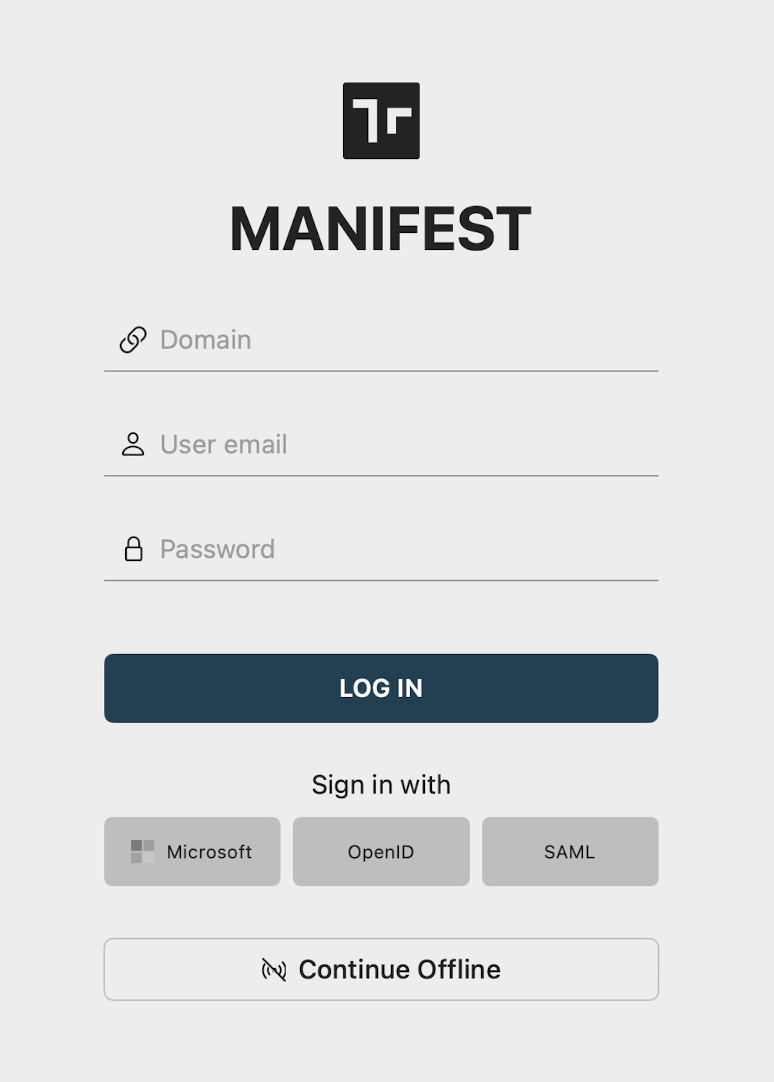
There are two ways to enter Offline Mode:- From the login screen: select Continue Offline, then enter your domain, email, and 6-digit Offline PIN.
- From an active online session: go to Settings > Manifest Account > Offline Mode and select Switch to Offline Mode. You will automatically enter Offline mode without needing to re-authenticate.
Authoring While Offline
- View or edit downloaded procedures like normal. Make sure to select Save to save any changes locally.
- Create and edit new procedures. These will need to be linked to a Manifest Asset Class once you return online.

Offline Status Indicators
Procedures show a badge indicating their offline status:| Icon & Label | Meaning |
|---|---|
 Downloading files Downloading files | Download of the procedures is in progress. |
 Saved on device Saved on device | Every step, note, image, video, and PDF in this procedure has downloaded successfully. Ready to open with zero signal. |
 Unsaved changes Unsaved changes | You’ve edited this procedure and not yet saved the changes locally. |
| Changes pending sync | You’ve changed this procedure while offline and it hasn’t been uploaded yet. |
AI-Assisted Generation Offline
Autogeneration works offline, with conditions on which engine is being used:💡Tip: We recommend Apple Intelligence only when the other two options aren’t available to you.
Returning to Online Mode
You can switch back to online mode any time:- Using the Switch to Online mode button on the Procedures home screen
- By logging out and signing back in through normal online sign-in
Syncing Your Offline Changes
- Login while connected and open the procedure you edited offline.
- If the server version hasn’t changed since you went offline, simply select Edit → Save and watch the procedure sync as usual.
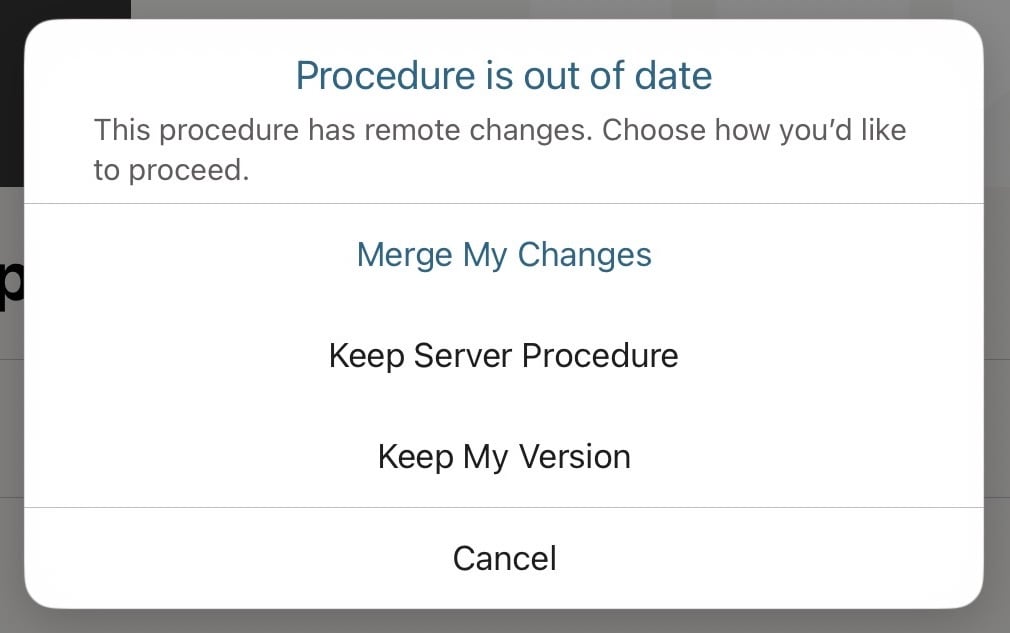
- If the server version has also changed, you’ll see a conflict dialog with three options: Merge My Changes (merge any offline edits with the server edits), Keep Server Procedure (keep the server version, ignore offline edits), Keep My Version (keep your offline edit and override the server version), or Cancel. After resolving the conflict, select Edit → Save.
- If the Procedure was created while offline, select Edit → Link to Manifest, assign or create an Asset Class, then wait for the procedure to sync and save.
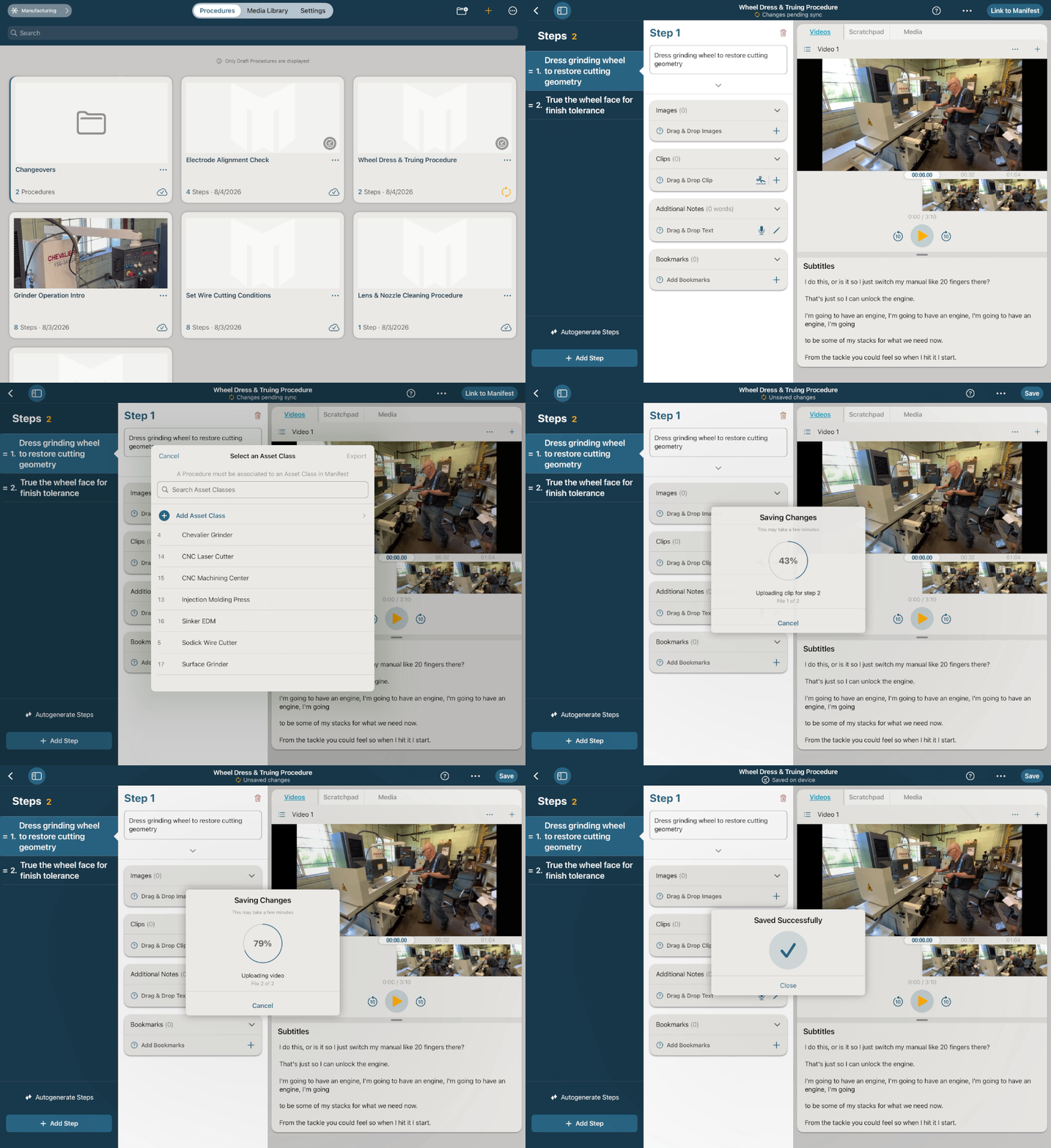
⚠️ Warning: Sync is always manual and is not complete until you have successfully saved the procedure while connected.
Limitations
The following require a connection and are not available in Offline Mode:- Creating a Manifest account or signing in for the first time
- Uploading procedures to Manifest
- Cloud-based AI generation (see AI-Assisted Generation Offline above for what does work)
- Creating, renaming, deleting, or moving folders on the server
- Browsing procedures that exist only on the server
FAQs
Can I set up Offline Mode without a connection? No. Creating or changing your Offline PIN, and downloading content, both require an active, authenticated online session. Does sync happen automatically when I reconnect? No. Sync is manual — open the procedure and select Edit → Save while online. What if the procedure I edited offline was deleted from the server? Upon opening the procedure online, you will received a message notifying you that the procedure no longer exists. Nothing crashes, but you will be unable to complete the upload or restore the procedure. Can I use AI generation while offline? Yes, with conditions — see AI-Assisted Generation Offline above. Cloud generation requires a connection; on-device and Apple Intelligence options can work offline. I signed in on a device that already has offline content from another account in my domain — why do I see it? Offline caching is domain-wide and device-specific, not tied to the individual account. Anything already downloaded to that device is visible regardless of which user signs in.Need help? Contact support.